
Variables & Patterns
Some phrases on your site repeat over and over, wrapped around a value that shouldn’t be translated at all:
- “Follow us on Instagram”, “Follow us on @kapitan.thebrand”
- “Remove Leopold from cart”, “Remove Bonanza from cart”
- “Invoice for order #10432”, “Invoice for order #10518”
- “5 Articles”, “11 Articles”
The sentence is identical every time. Only the platform, the product name, the order number, the count changes — and none of those should come out different in German or Japanese. A handle is a handle; an order number is an order number.
Left alone, each variation is a separate string to translate, and every new product, order or count adds another one.
Variables fix that. You mark the value that must stay as it is, and Omnalingo translates the sentence around it once. The result is called a pattern:
Follow us on Instagram ┐ ├──► Follow us on {channel} → one translationFollow us on @kapitan.thebrand ┘The variable is passed straight through into every language, untouched. The rest of the phrase is translated normally.
Patterns Omnalingo finds by itself
Section titled “Patterns Omnalingo finds by itself”Omnalingo creates patterns for numbers automatically, without you doing anything — numbers being the one kind of value that’s obviously language-independent.
When a scan sees the same phrase twice with a different number in it, it turns the
number into a variable and merges the two strings. That’s how “5 Articles” and
“11 Articles” become {number1} Articles on their own. The trigger is the second
sighting; a phrase that only ever appears once keeps its number and stays an
ordinary string.
Two kinds of numbers are deliberately left alone:
- Numbers with a separator —
1.5,19,99,1,000,000. A comma or a period means something different in each language, and a variable would carry the number through unchanged, giving you a German sentence around an English1.5. So prices and decimals stay ordinary strings, where you (or the AI) see the number in its sentence and can write it the way the language writes it — which also lets the currency symbol move to the side that language puts it on. Plain numbers like4,55or2026read the same everywhere and are merged as normal. - Numbers inside links and markup — the
2in a/page/2link, awidth="100". Those belong to the HTML, not to the sentence.
Creating a variable yourself
Section titled “Creating a variable yourself”Names, handles, IDs and codes need one click from you — Omnalingo won’t guess which words are product names.
In the Full Text List, a page’s string list or the Visual Editor, every string has a small variable button next to its ORIGINAL label. Click it to open the Create Variable dialog.
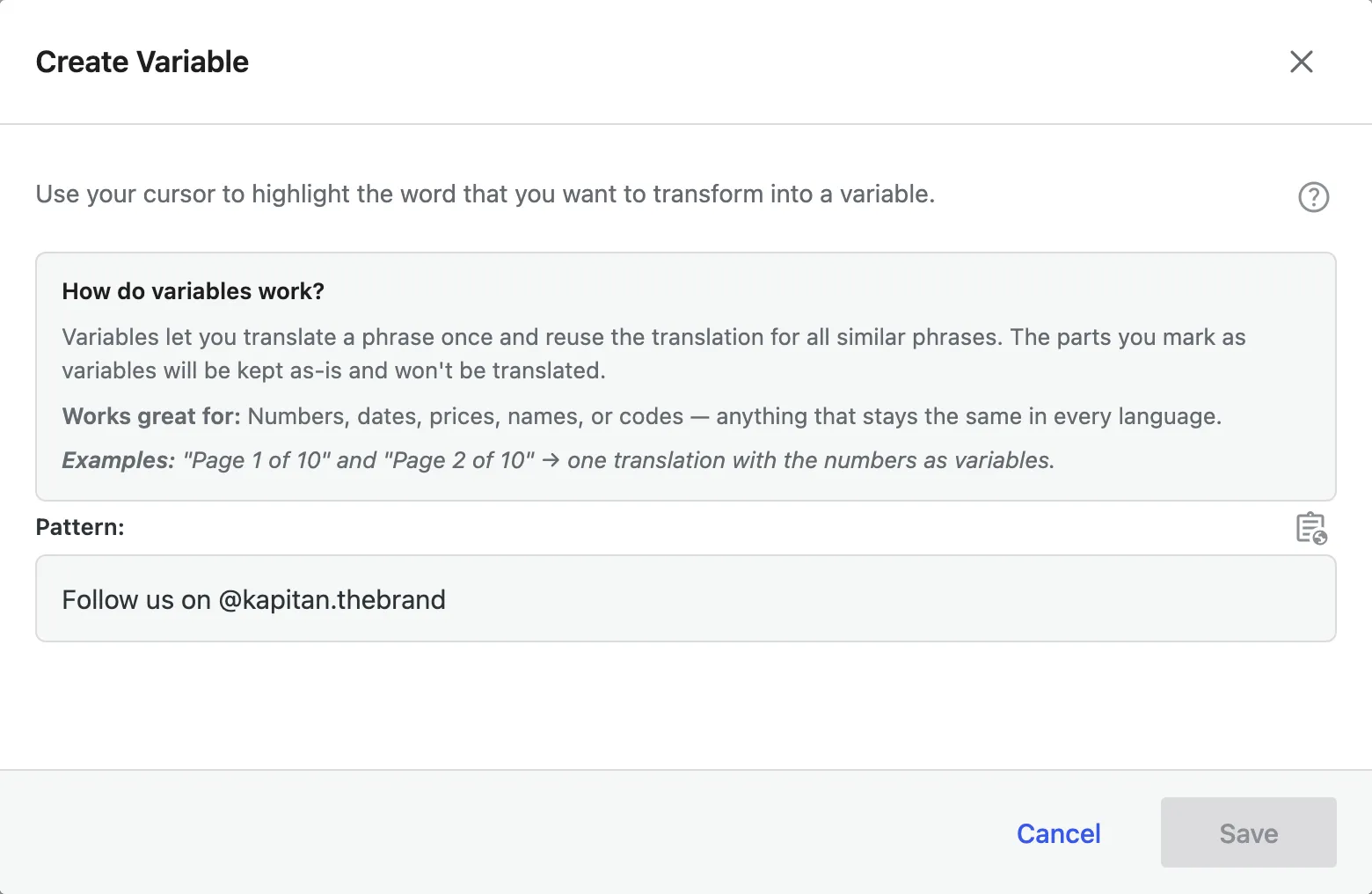
1. Highlight the part that must stay untranslated
Section titled “1. Highlight the part that must stay untranslated”Select it with your cursor, exactly as you would in a text editor, then click Add variable.
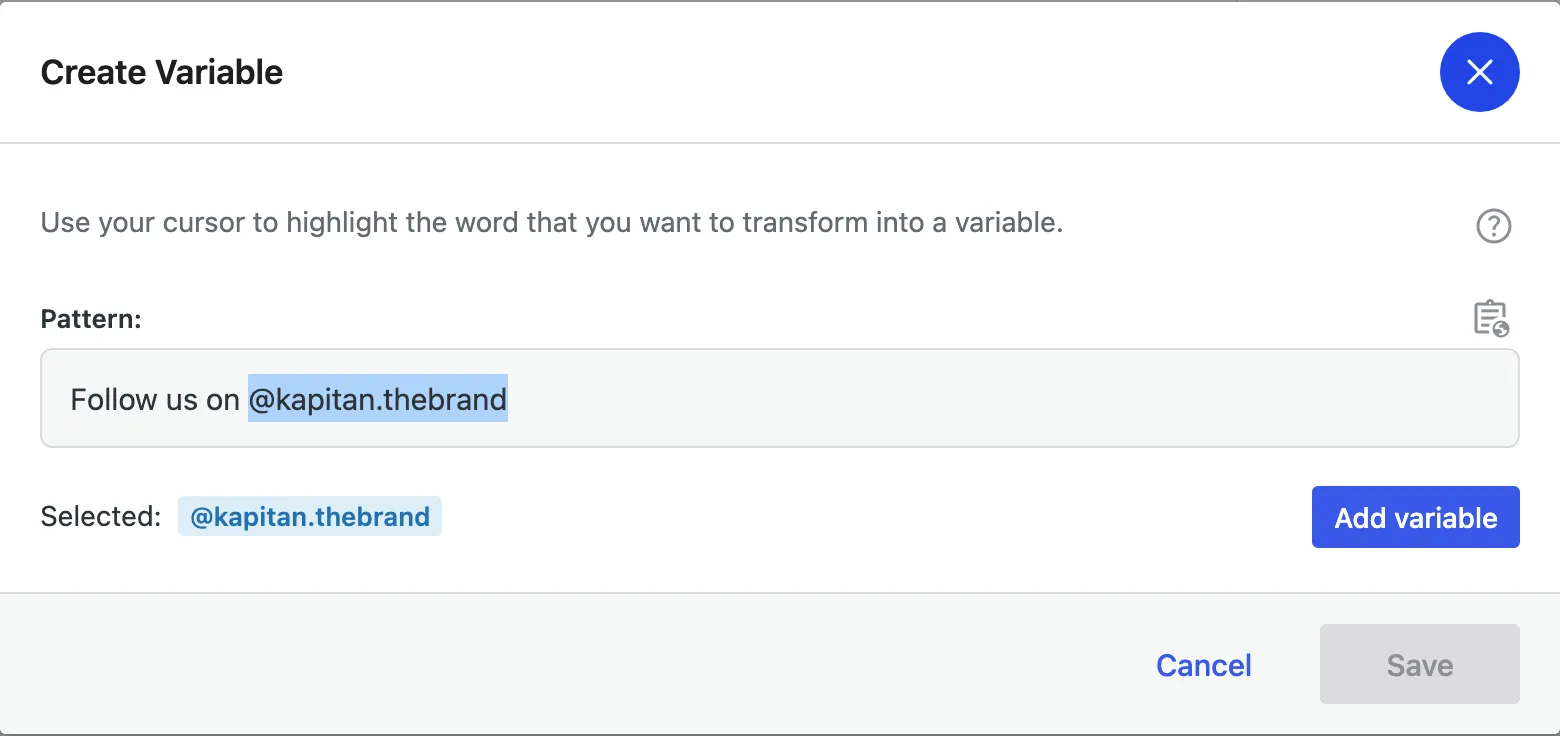
2. Name it and choose what it may match
Section titled “2. Name it and choose what it may match”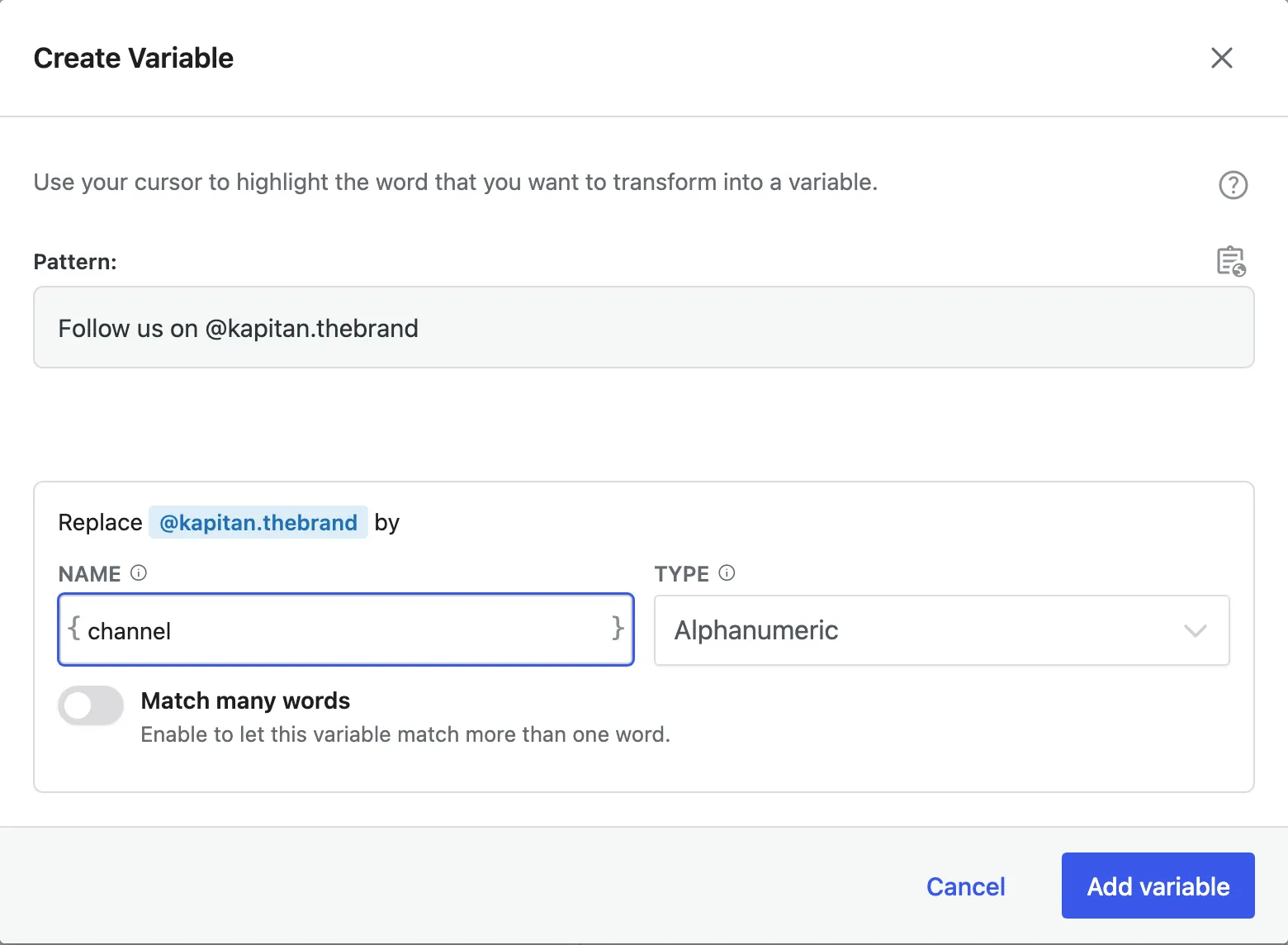
-
Name — how the variable appears while you translate, in curly braces:
{channel},{number1},{order_id}. Omnalingo suggests a generic name; rename it to something meaningful so it’s obvious later what belongs in the slot. Letters, numbers, underscores and hyphens only. -
Type — what the variable is allowed to match. This decides which other strings the pattern picks up:
Type Matches Use it for Numerical Only digits counts, quantities, order numbers, years Alphabetical Only letters first names, product names Alphanumeric letters and digits handles, SKUs, product codes, IDs Single Character exactly one letter sizes like S, M, L Types that don’t fit what you highlighted are greyed out — you can’t call a product name a number.
-
Match many words — off by default, so the variable stands for a single word. Turn it on when the value can be longer (“Light Beige Ferdinand”). If your selection already contains a space, this is switched on and locked for you.
You can add several variables to one phrase — highlight another part and repeat. A pattern does need some fixed text left over, though; a phrase made only of variables would match almost anything and is rejected.
3. Check what it will affect, then save
Section titled “3. Check what it will affect, then save”Before saving, Omnalingo tells you exactly which strings the new pattern will swallow.
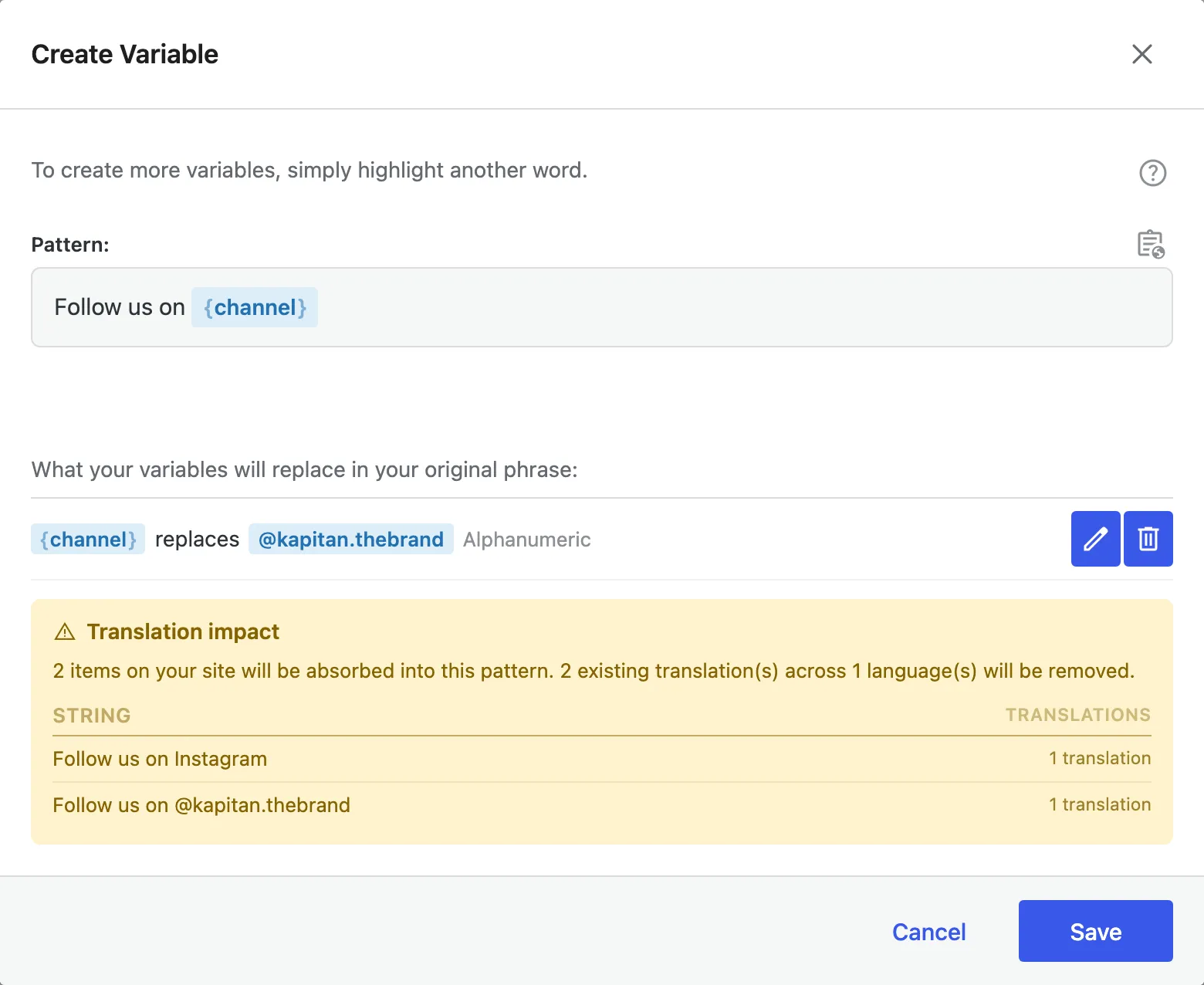
Here one pattern picks up both the platform name and the social handle — proof the type is wide enough.
Read this panel carefully. The strings listed here stop existing as separate entries and become instances of the pattern — and their individual translations go with them, because the pattern’s translation now covers them all. Omnalingo tries to reuse an existing translation as the pattern’s translation, but it can only do that when it can still find the variable’s value inside it. If the value was translated in that sentence, it can’t — which is another sign the value shouldn’t be a variable.
A green panel means nothing is lost. A yellow one means translations will be removed — if that isn’t what you want, hit Cancel.
Translating a pattern
Section titled “Translating a pattern”A pattern behaves like any other string in the translation lists, with the variables shown as chips.

Write the translation and put each chip where the target language needs it — word
order changes between languages, and the chips move with it. Insert one with the {x}
button in the toolbar, drag an existing chip, or just type its name in curly braces.
Keep every variable in the translation. If one goes missing, Omnalingo warns you before saving: the value it stood for would have nowhere to go.
On the live site the variable is filled back in from the actual text, so a visitor sees “5 Artikel”, “11 Artikel”, “Folge uns auf @kapitan.thebrand” — including values that never appeared during a scan.
Managing patterns
Section titled “Managing patterns”Open the Pattern Manager from the icon next to Pattern: in the Create Variable dialog. It lists every pattern on your site.
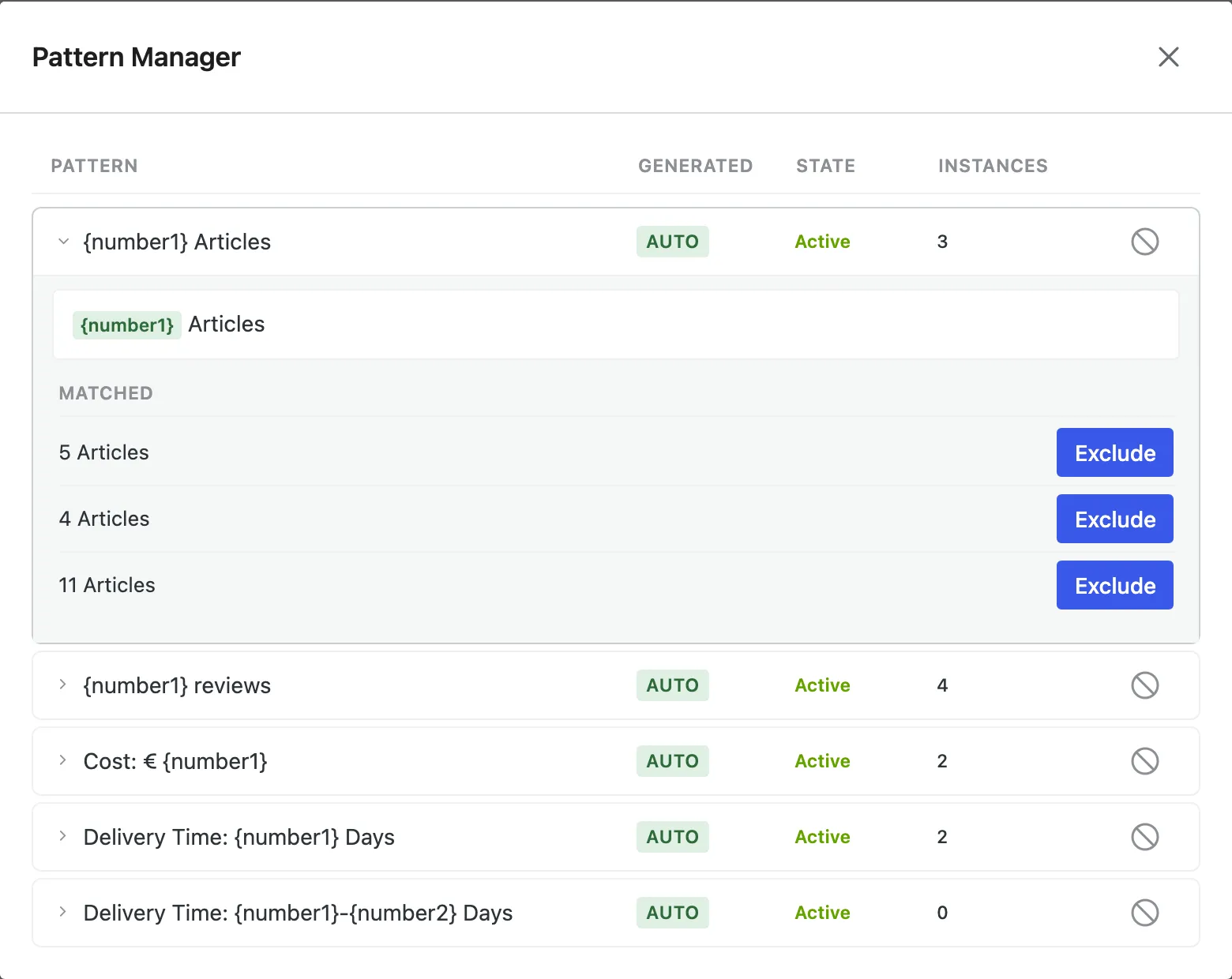
Each row shows the pattern, whether it was Auto-detected or created Manually, whether it’s active, and how many strings it currently covers. Expand a row to see those strings.
- Exclude one string — it leaves the pattern and becomes individually translatable again, while the rest of the pattern keeps working. Use this when one case genuinely needs its own wording. Re-include puts it back.
- Disable an auto-detected pattern — it stops matching, and its strings return as ordinary strings you can translate one by one. It stays in the list so you can re-enable it, and so scanning doesn’t recreate it.
- Delete a pattern you created — this removes it for good and its strings come back as individual entries. A deleted pattern whose numbers are auto-detectable can be recreated by a later scan.
Disabling or deleting a pattern removes the pattern’s translation, so the strings that come back are untranslated until you translate them (or let AI translation do it).
When to use a variable
Section titled “When to use a variable”Yes — the value is the same in every language
- Brand, platform and product names: “Follow us on Instagram”, “Remove Leopold from cart”
- Handles, emails, SKUs, product codes
- Order, invoice and ticket numbers: “Invoice for order #10432”
- Counts and quantities that Omnalingo missed because they only appeared once
- Dates and measurements written as digits
No — translate these properly instead
- The changing word needs a translation of its own: “Filter by Color”, “More in Outerwear”, “Available in Sand”. Three variations means three translations.
- Prices and decimals — the separator has to change per language.
- Phrases where the value changes the grammar around it. Some languages change the article, the ending or the word order depending on the word in the slot, and one translation can’t cover all of them. If the sentence only reads well for some of the values, keep the strings separate.