
Full Text List
The Full Text List shows every translatable string Omnalingo has found across your entire site, in a single searchable list. Open it from Omnalingo → Translation → Full Text List.
It’s one of the three ways to translate, alongside the Visual Editor and a single page’s string list. Reach for the Full Text List when you’re not working page-by-page — to find a specific phrase, or to translate a large batch of text in one sitting.
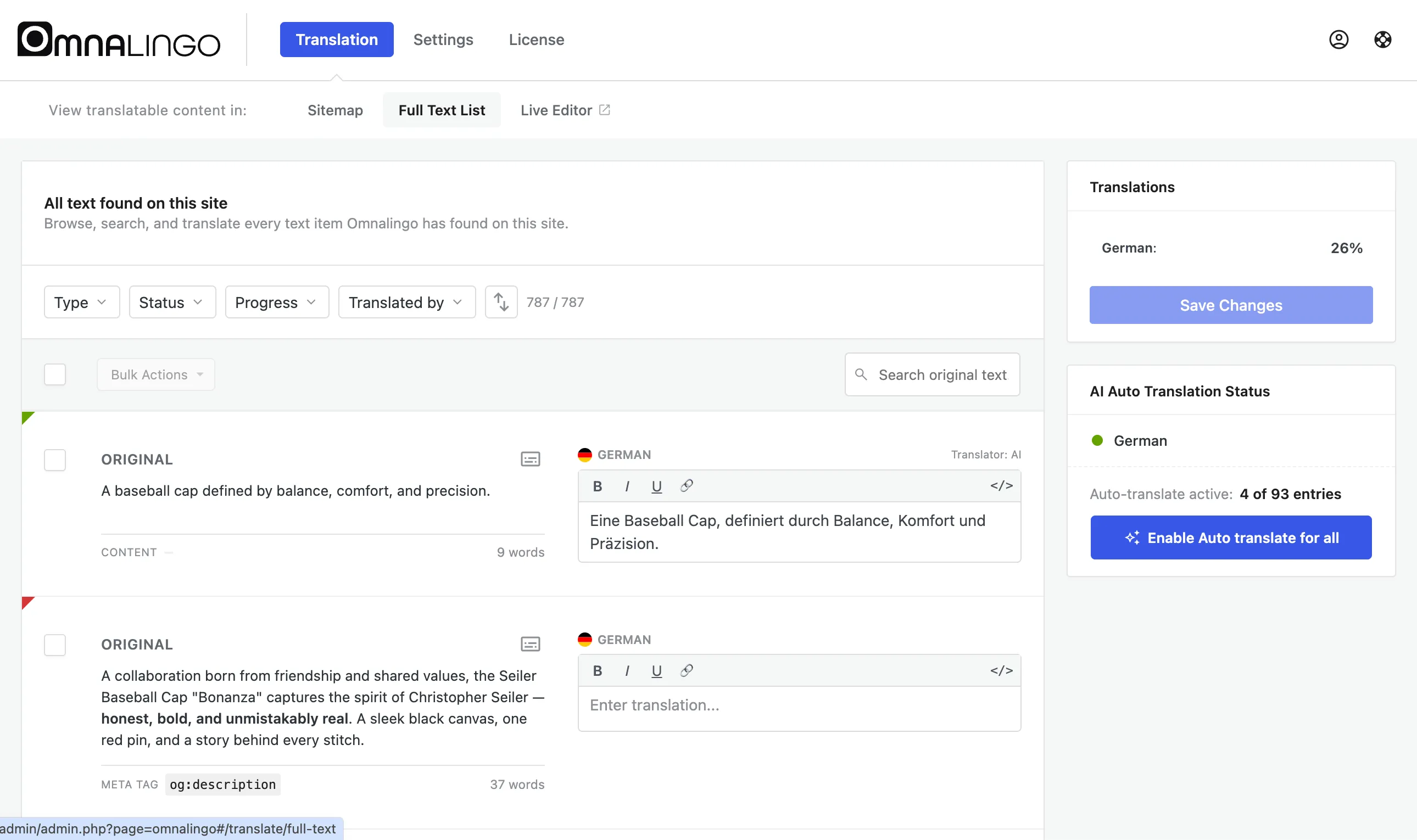
What you see
Section titled “What you see”Each row shows the ORIGINAL text on the left and the editable translation for your target language on the right, with:
- A type label (Content, a meta tag like
og:description, a title, and so on) and the string’s word count. - A Translator: AI / Human indicator showing how the current translation was produced.
- An inline editor — plain text, or a rich-text toolbar (bold, italic, underline, link,
and a
</>source view) for formatted strings.
Edits are saved with Save Changes. The right-hand panel shows overall translation progress per language.
Finding strings
Section titled “Finding strings”- Search original text to jump to a specific phrase.
- Filter by Type, Status, Progress, or Translated by to narrow the list — for example, show only untranslated content, or only strings still translated by AI that you want to review.
- Use Bulk Actions to act on several selected strings at once.
When to use it
Section titled “When to use it”- Finding and fixing a specific wording across the whole site.
- Translating or reviewing in bulk, without loading each page.
- Working with strings that don’t belong to a single page (shared theme and plugin text, site-wide labels).
For translating in context on the live page, use the Visual Editor; for one page at a time, use its string list.