
How It Works
Omnalingo translates your site in the background and serves the results as ready-made pages. Knowing the lifecycle makes it obvious what to do when something needs updating — and why translated pages are just as fast as your originals.
The Sitemap: finding what to translate
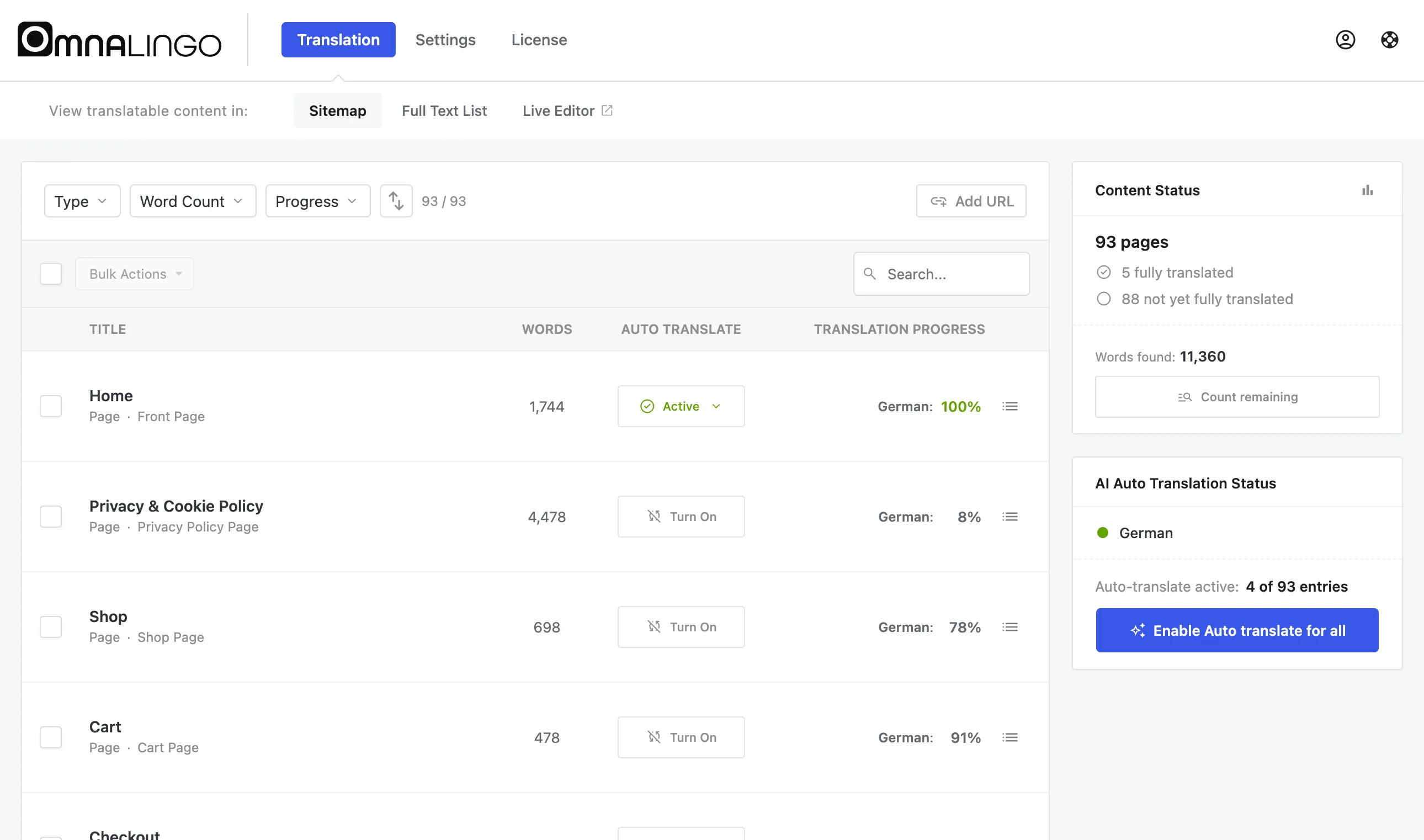
Section titled “The Sitemap: finding what to translate”Omnalingo keeps a live list of every translatable URL on your site — pages, posts, products, taxonomy archives, and more. You control which content types are included under Settings → General → Sitemap Content Settings (the Smart default preset covers most sites).
This list is the Sitemap, shown on the Translation screen with each URL’s title, type, word count, and translation progress. New content shows up automatically — there’s no manual “gather” step to run.
Reading your content
Section titled “Reading your content”To translate a page, Omnalingo first reads the fully rendered page — exactly what a visitor sees — and extracts every visible string:
- Headings, paragraphs, and body text
- Button labels and form placeholders
- Navigation menu items and widget content
- Strings from your theme and plugins (like “Add to cart” or “Search”)
- Image alt text and other accessibility attributes
Every string is saved and deduplicated — text that appears on 50 pages (a site-wide footer, say) is stored once and translated once. The Sitemap shows a word count so you can see how much text your site has.
Translating
Section titled “Translating”There are two ways to translate, and you can mix them freely:
Auto Translate. Switch it on for a single page (Turn On) or your whole site (Enable Auto translate for all). Omnalingo translates the existing content and then keeps it in sync — whenever you edit a page later, the translation updates automatically. It’s an ongoing setting, not a one-time run.
The Live Editor. Open any page in the Live Editor and click Translate page to translate it on the spot, then review each string in context — accept it, edit it, or re-translate it.
Either way, Omnalingo applies your glossary rules and your AI Context and Translation Style (business type, writing voice, translation freedom) automatically. And manual edits always win — anything you write by hand is locked in and never overwritten by AI.
Serving translated pages (automatic)
Section titled “Serving translated pages (automatic)”Once a translation is stored, this happens on its own — you never trigger it.
When a visitor requests a translated URL (say /fr/about/), Omnalingo sees the
language prefix, lets WordPress render the page normally in your source language, then
swaps each string for its stored translation before the page is sent.
The visitor gets a fully translated page. The swap is a simple database read that happens in milliseconds — no API calls, no content discovery, no database writes. Your original-language pages are completely unaffected.
Because translated pages are served as regular HTML, they work with any page caching plugin — zero PHP overhead for every visitor after the first.
Keeping translations up to date
Section titled “Keeping translations up to date”- With Auto Translate on: edits re-translate automatically — nothing to do.
- Without it: after editing a page, re-translate it in the Live Editor, or switch Auto Translate on for it.
- After changing glossary terms or AI settings: re-translate the affected pages to pick up the new rules.
Summary
Section titled “Summary”| Stage | What it is |
|---|---|
| Sitemap | A live list of every translatable URL, from your content-type settings |
| Word count | How much text your site has — refresh with Count remaining (optional) |
| Auto Translate | Translates existing content and keeps it in sync on edits (ongoing) |
| Live Editor | Translate or refine a single page; manual edits always win |
| Serve | Visitors get the stored translation instantly (automatic) |