
The Visual Editor
The Visual Editor gives you a clickable preview of your real page, with a side panel for translating. You can edit any string by hand or translate the whole page with AI — and see every change in context, exactly as a visitor would.
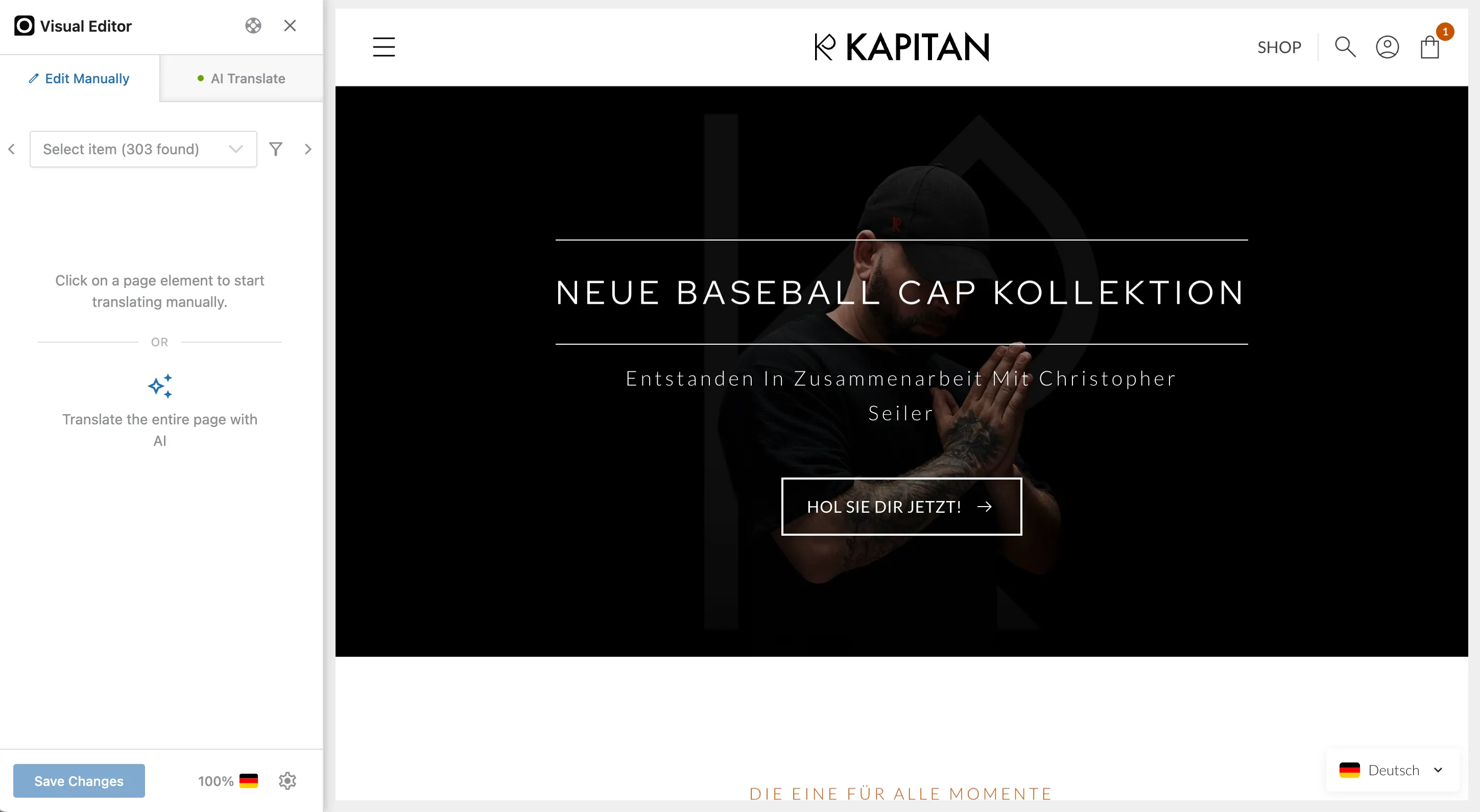
Omnalingo gives you three ways to work through translations — the Visual Editor (this page), the Full Text List, and a single page’s string list. Reach for the Visual Editor when you want to see each change in context on the live page.
Opening the Visual Editor
Section titled “Opening the Visual Editor”- From the Translation screen — open Omnalingo → Translation and click the Live Editor tab, or the editor icon on any page’s row to open that page.
- From the front end — while browsing your site as a logged-in admin, use the Translation menu in the WordPress admin bar to open the editor for the page you’re viewing.
The panel has two tabs — Edit Manually and AI Translate — and a Save Changes button at the bottom.
Edit Manually
Section titled “Edit Manually”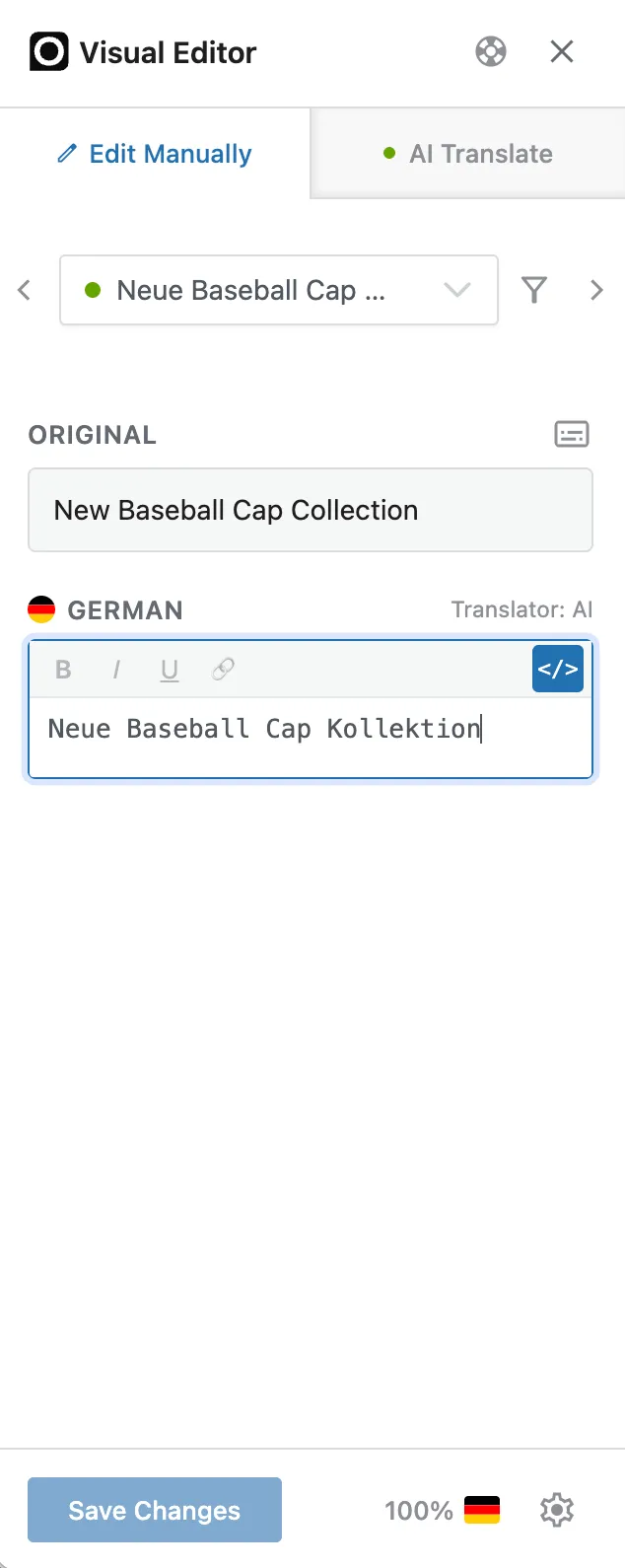
On the Edit Manually tab, click any highlighted element in the preview to select it — or step through every string with the Select item picker (it shows how many were found, with previous/next arrows and a filter).
When a string is selected, the panel shows:
- ORIGINAL — the source text, read-only.
- Your target language (e.g. German) — the editable translation, with a Translator: AI / Human label showing how the current text was produced.
Formatted text gets a rich-text toolbar (bold, italic, underline, link, and a </>
source view); plain text gets a simple field. Your translation appears live in the
preview as you type. Click Save Changes when you’re done.
Manual edits always win. Anything you type by hand is locked in and is never overwritten by AI.
AI Translate
Section titled “AI Translate”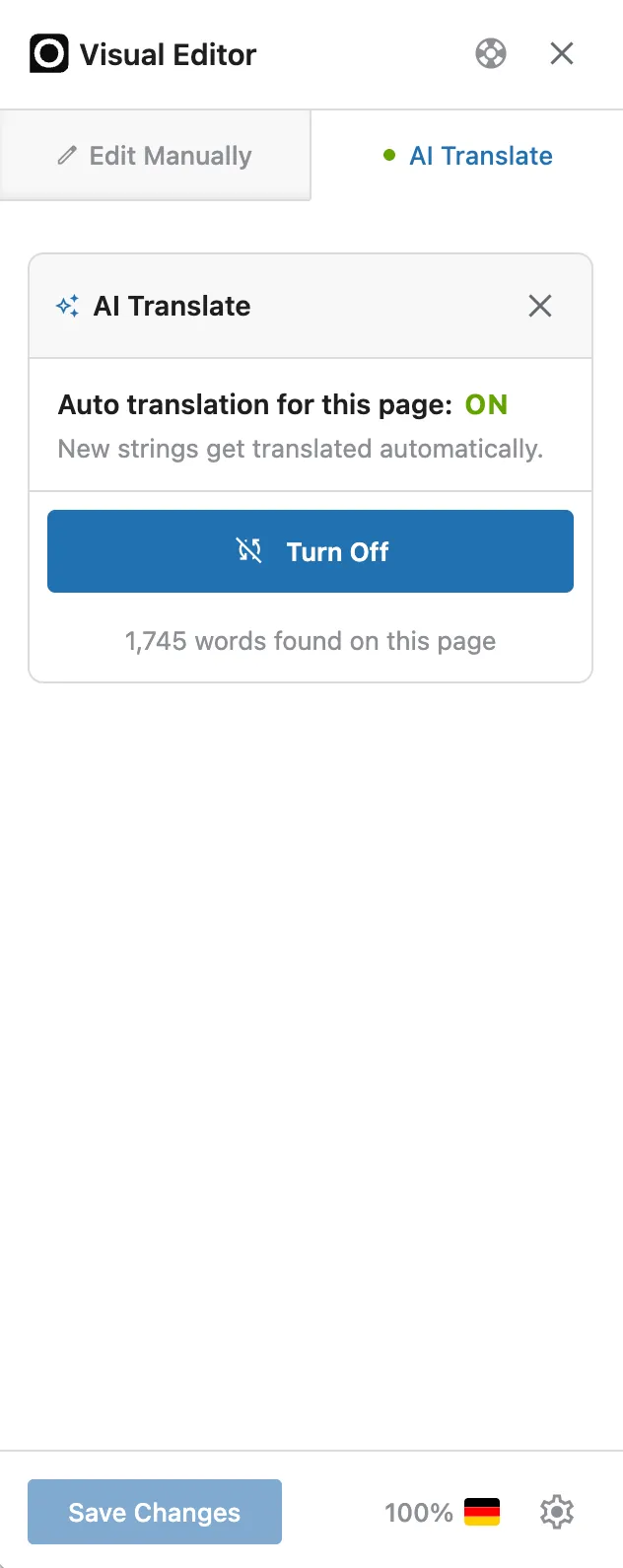
The AI Translate tab controls AI translation for the page you’re on. It shows whether Auto translation for this page is ON, how many words are on the page, and a button to Turn Off (or Turn On).
With it on, Omnalingo translates the page and keeps new or changed strings translated automatically — the per-page version of the Auto Translate toggle on the Sitemap. To translate the page just once without leaving auto-translation on, use Translate the entire page with AI on the Edit Manually tab; a short chat-style progress flow runs while the AI works.
Either way, your glossary and AI Context / Translation Style are applied automatically. AI translation needs capacity — trial words, or an activated language. See Manual vs. AI Translation.
Switching languages
Section titled “Switching languages”The flag at the bottom of the panel shows which language you’re editing. Switch target languages there; the preview and the editable field update to match.
Other ways to translate
Section titled “Other ways to translate”Not everything has to happen in the visual preview. When a string isn’t clickable — text inside a modal that only opens on click, or very dynamic JavaScript-driven content that may need a reload — switch to a list view instead:
- The Full Text List — every string on your whole site in one searchable list.
- A single page’s string list — every string on one page, reached from the Sitemap.
Content that changed
Section titled “Content that changed”If text was on the page in a past scan but isn’t anymore — because it was deleted or rewritten — Omnalingo flags it rather than silently dropping its translation. See Orphan Management for how changed content is handled.