
Glossary
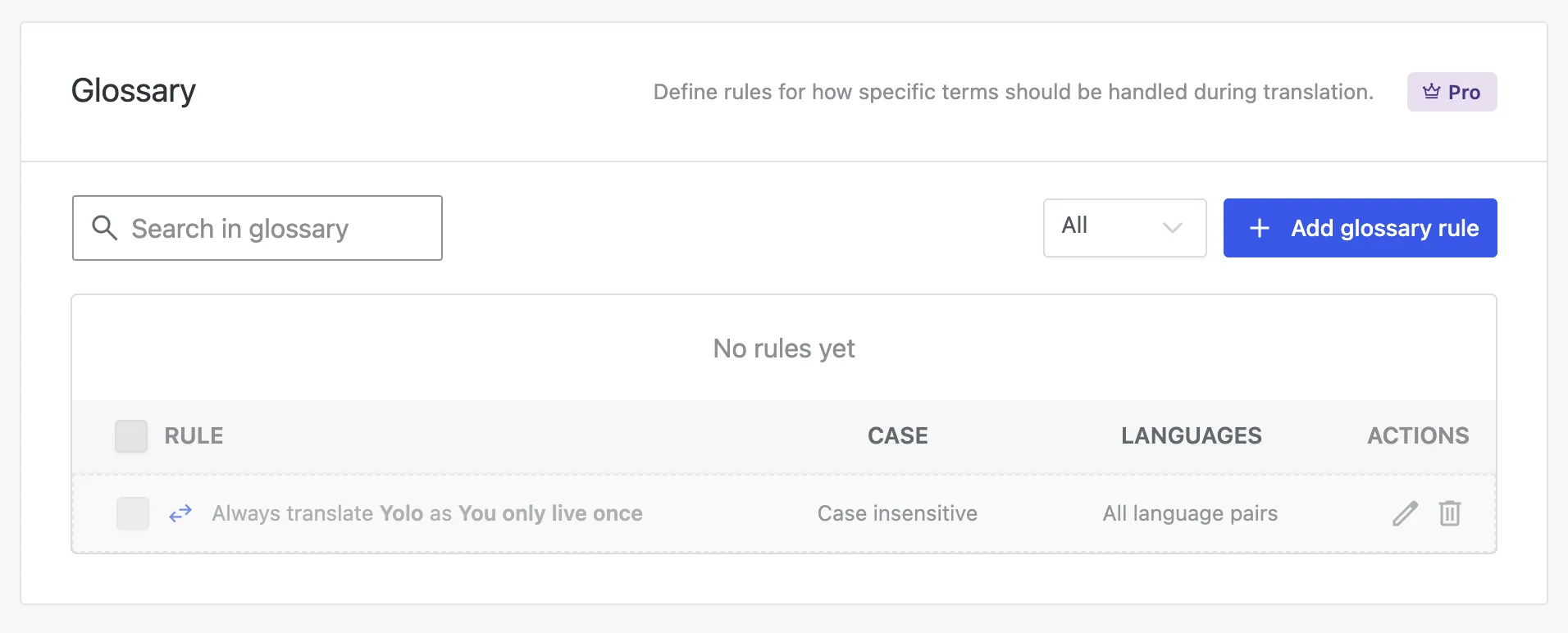
The Glossary lets you define rules for specific words or phrases instead of letting the AI decide: keep a term untranslated, or always translate it a fixed way. Rules are passed to the AI as instructions, so they’re more reliable than general guidance. Find it under Omnalingo → Settings → AI Settings, alongside AI Context and Translation Style.
Adding a rule
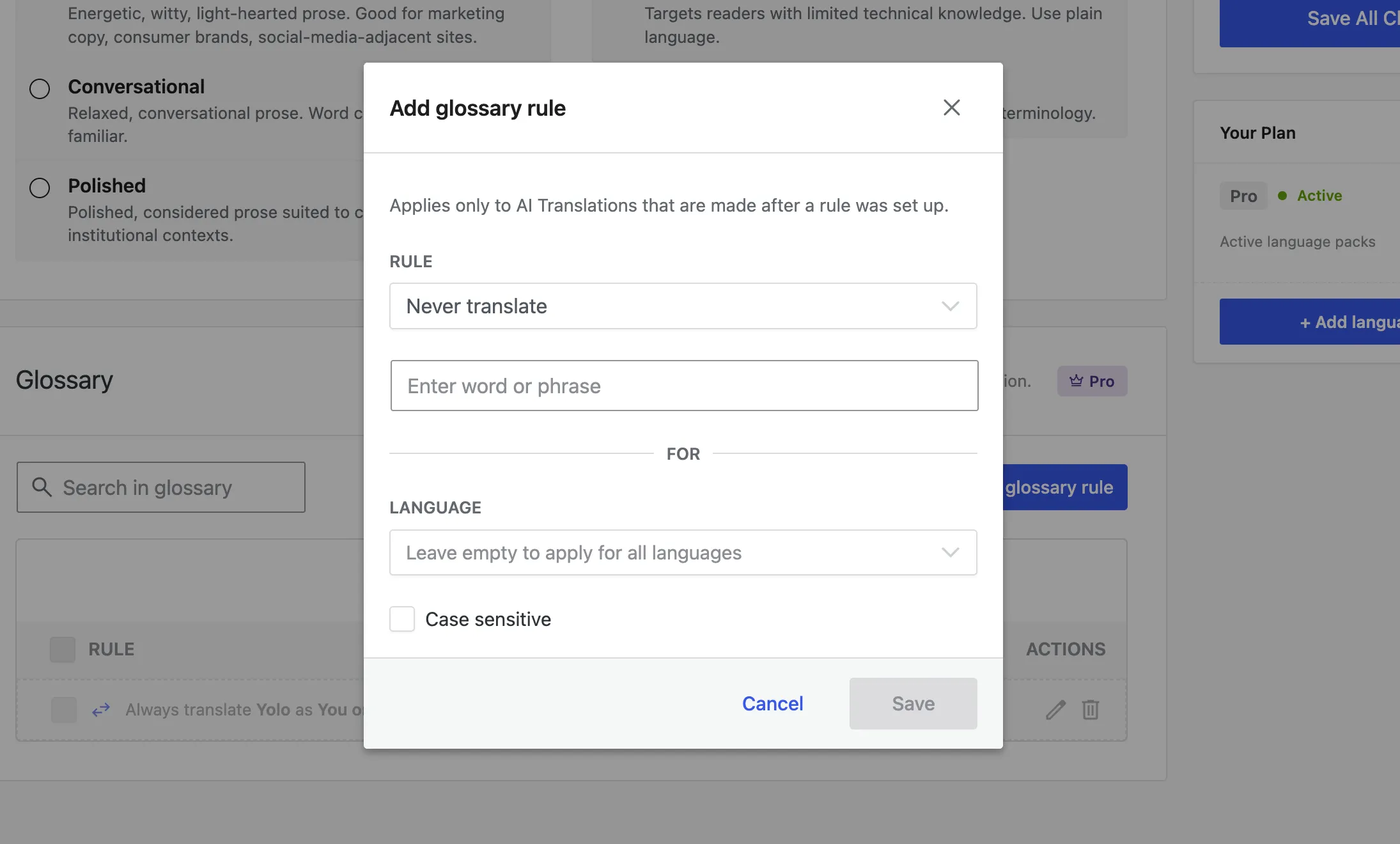
Section titled “Adding a rule”Click Add glossary rule and fill in:
- Rule — Never translate (leave the term exactly as written — for brand names, product names, technical identifiers) or Always translate as (use your exact wording every time).
- Word or phrase — the term as it appears in your source content. (For “Always translate as”, you also enter the translation to use.)
- Language — leave empty to apply to all languages, or pick one to scope the rule (e.g. translate a term in French but leave it as-is in German).
- Case sensitive — when on, the rule matches only the exact capitalisation you entered.
Each rule in the list shows its case setting and which languages it covers, and can be edited or deleted. Use the search box and filter to manage a long glossary.
Glossary vs. exclusions
Section titled “Glossary vs. exclusions”Both keep text from being translated freely, but at different scopes:
- Glossary — a specific word or phrase, handled inside otherwise-translated text. Applies to future translations (re-translate to apply).
- Exclusions — a whole element (by CSS selector), skipped entirely. Applies immediately, including to content already translated.