
Translating Your Site
There are two ways to translate your content, and you can mix them freely: Auto Translate for a whole-site, set-and-forget approach, and the Live Editor for translating and refining a single page by hand.
Auto Translate (recommended for most sites)
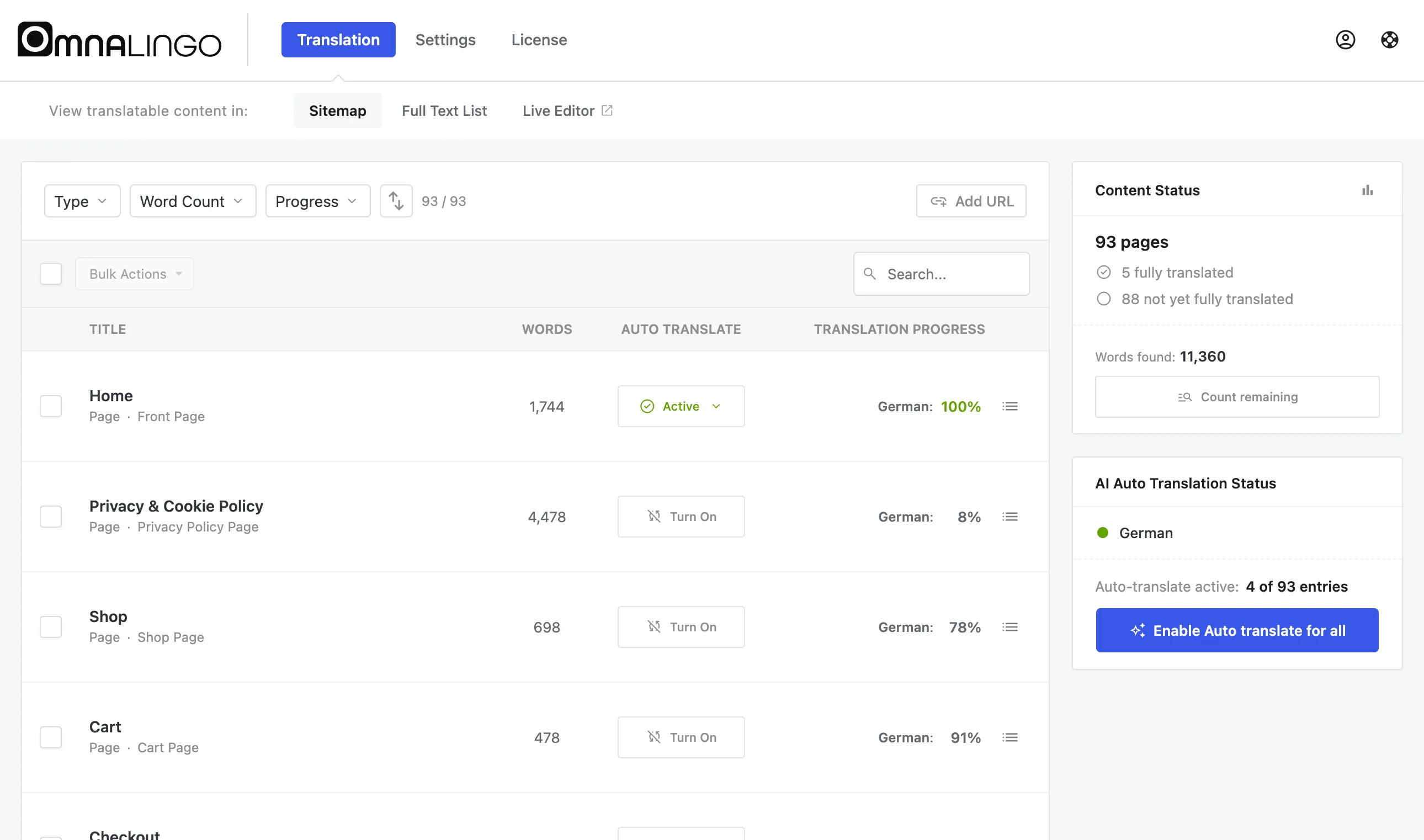
Section titled “Auto Translate (recommended for most sites)”Auto Translate is a switch you turn on — per page (Turn On) or for everything at once (Enable Auto translate for all, in the AI Auto Translation Status panel on the Translation screen).
When it’s on, Omnalingo:
- Translates the existing content for that page or your whole site, and
- Keeps it in sync — whenever you edit the original later, the translation updates automatically.
It’s an ongoing setting, not a one-time run. For most sites, turning on Auto Translate for everything is all you ever need to do.
The Live Editor (hands-on, one page at a time)
Section titled “The Live Editor (hands-on, one page at a time)”Open any page in the Live Editor and click Translate page. Omnalingo translates the whole page on the spot — a short chat-style progress flow shows what it’s doing while the AI works (a few seconds) — and then you can review each string in context: accept it, edit it, or re-translate it.
Use the Live Editor when you want to translate a specific page right now, or to fine-tune wording and see exactly how it looks in your layout.
Manual edits always win
Section titled “Manual edits always win”Anything you translate or rewrite by hand is locked in — AI never overwrites it. That’s true whether you edited it in the Live Editor or turned Auto Translate on afterward. You can safely re-run AI translation at any time; it only fills in strings that don’t have a translation yet.
Word usage
Section titled “Word usage”- Trial key: AI translation draws on your one-time 2,000-word trial. When it’s used up, AI pauses but manual editing keeps working.
- Activated language: there’s no per-word billing and no meter to manage — usage is shown simply as Fair Use.
The word count in the Sitemap is informational. You can refresh it with Count remaining, but you don’t have to — translating a page updates the count anyway, and with an activated language the number rarely matters.
If something looks off
Section titled “If something looks off”- Some text is still in the original language. That page (or string) hasn’t been translated yet — turn on Auto Translate for it, or translate it in the Live Editor.
- An edit isn’t reflected on the frontend. If you run a full-page cache or CDN, clear it so visitors get the freshly translated page.
- A translation looks wrong. Open the page in the Live Editor and rewrite that string — your edit takes priority from then on.