
Customizing the Switcher
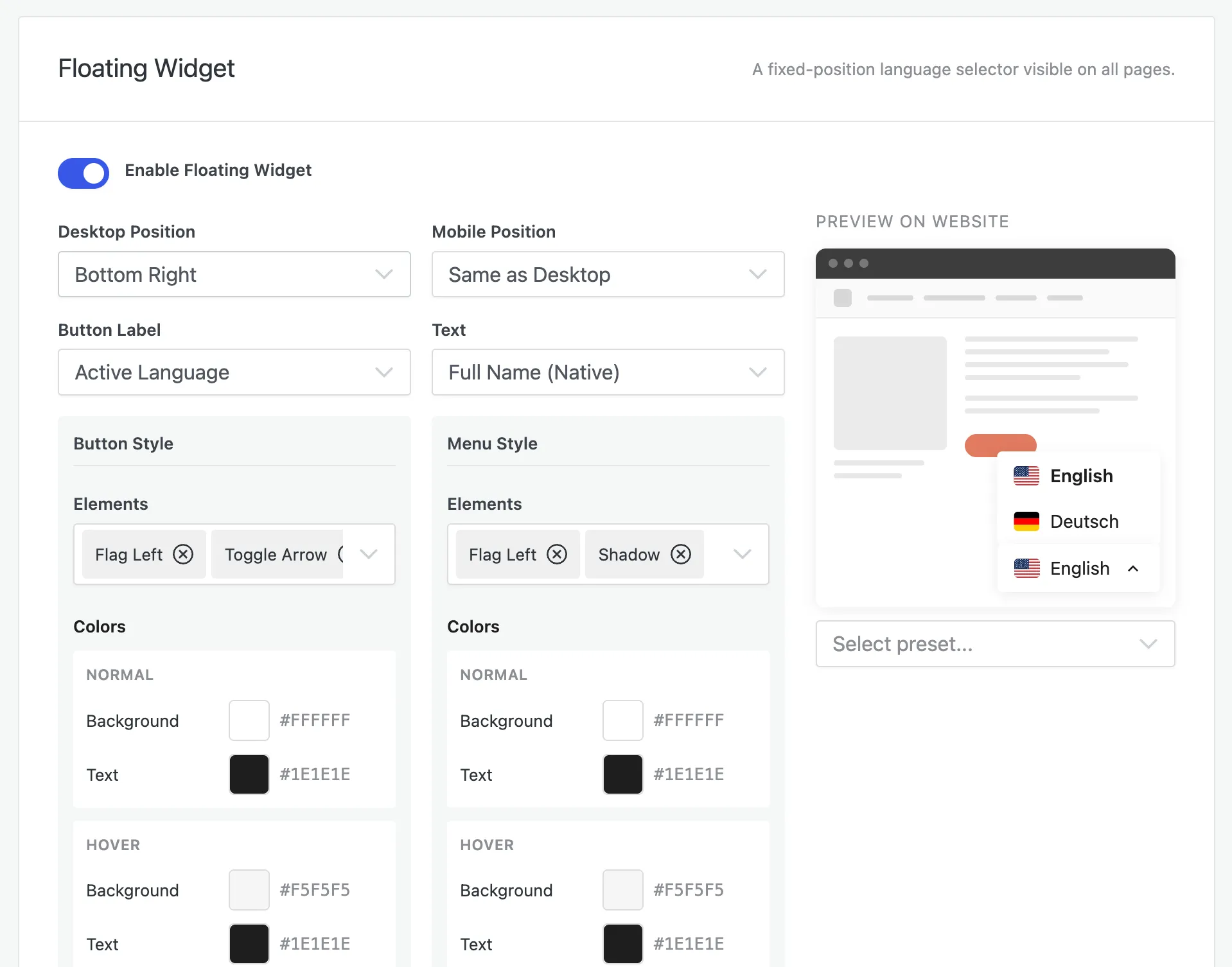
Everything about how the switcher looks is set under Omnalingo → Settings → Language Switcher, with a live preview beside the controls and a Select preset… dropdown for quick starting points.
Position
Section titled “Position”- Desktop Position — which corner the floating widget sits in.
- Mobile Position — the same, for small screens (or Same as Desktop).
Labels
Section titled “Labels”- Button Label — what the trigger button shows: the Active Language, your own custom text, or a custom icon.
- Text — how each language is named in the list, for example Full Name (Native) (e.g. “Deutsch”), the English name, or the short code.
The trigger button and the open menu are styled separately, under Button Style and Menu Style:
- Elements — toggle individual parts on or off: the flag (and its side), the toggle arrow, shadow, and the flyout arrow.
- Colors — set background and text colors for both the Normal and Hover states.
Presets
Section titled “Presets”Use Select preset… to apply a coordinated look in one click, then fine-tune from there. The preview updates as you change anything, so you can see the result before saving.
Click Save All Changes when you’re happy with it.