
Managing Languages
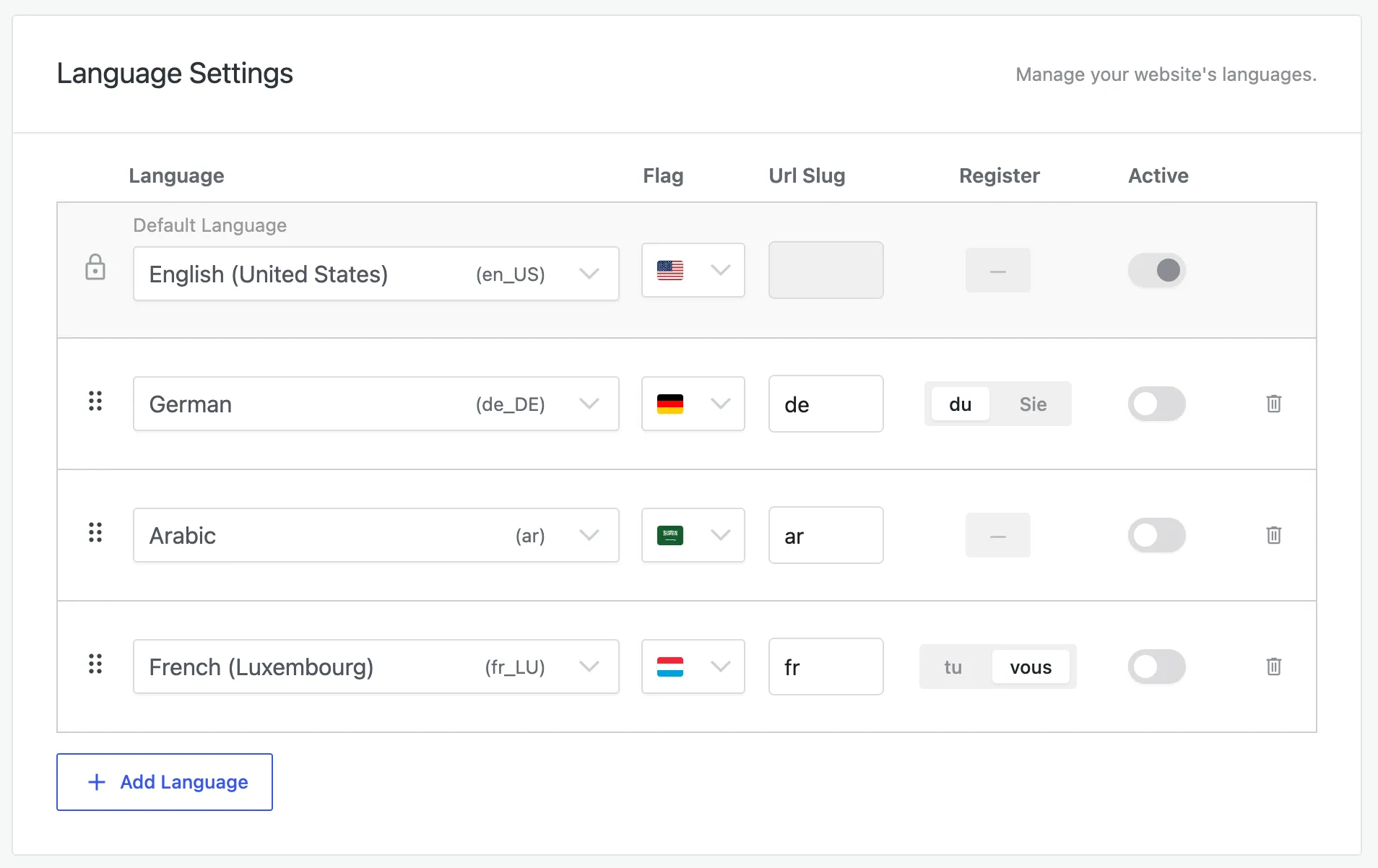
Your languages live under Omnalingo → Settings → General, in the Language Settings section. This is where you add languages, set how they appear, and control which ones visitors can see.
Add a language
Section titled “Add a language”-
Under Language Settings, click Add Language.
-
Pick the language you want to translate into (for example, German or French).
-
Set its URL slug — the prefix in translated URLs, like
defor/de/about/. One is filled in automatically from the language code. -
Toggle it Active, then click Save All Changes.
Adding a language doesn’t translate anything on its own — head to Translating Your Site to do that. Once translations exist, the language appears to visitors automatically.
The settings for each language
Section titled “The settings for each language”- Default language — your source language sits locked at the top of the list. It’s what your content is written in and what gets translated from.
- Flag — the flag shown in the language switcher. Omnalingo sets a sensible default; change it if you’d prefer a different regional flag.
- URL slug — the prefix in translated URLs (
/de/,/fr/). Slugs must be unique across your languages. Once your site is live, changing a slug breaks existing links and bookmarks to that language, so set it before launch. - Register (formality) — for languages that distinguish formal and informal address, choose which one the AI uses: du / Sie in German, tu / vous in French, and so on. Languages without that distinction (like English) show —.
- Active toggle — controls whether visitors can see the language. Switch it off while you’re still working on a language; your translations are preserved and come back the moment you switch it on again.
Reorder languages
Section titled “Reorder languages”Drag a language by its handle to change the order it appears in the language switcher. Your default language is shown separately — only target languages reorder here.
Remove a language
Section titled “Remove a language”Click the delete icon next to a language and save. Removing a language deletes its translations from your database and can’t be undone. If you might want it back later, switch it inactive instead of deleting.
Supported languages
Section titled “Supported languages”Omnalingo supports 130+ languages — the Add Language dropdown is the full list. If you can find it there, Omnalingo can translate into it.
Right-to-left languages
Section titled “Right-to-left languages”Right-to-left languages such as Arabic, Hebrew, Persian, and Urdu are fully supported. Omnalingo applies the correct text direction automatically, so RTL pages read properly without any extra setup.