If you have spent any time researching how to translate an Enfold website, you probably expect a grueling afternoon ahead of you. Most older translation guides for page builders read like flight manuals: export translation tables, duplicate every Avia Layout Builder template, map custom shortcodes, and pray that an icon box does not break on mobile. We have good news: in 2026, translating an Enfold site does not require configuring individual builder elements or rebuilding layouts by hand.
As the creators of Enfold, we know how much thought you put into building your pages. When you design a layout using Avia columns, testimonial sliders, and callout buttons, the last thing you want is to re-create that exact same structure across three different languages. With a modern translation tool like Omnalingo, you build your layout once, and the software translates the human text automatically without touching your design.
Here is the complete, straightforward process to translate your entire Enfold website in a few minutes.
Step 1: Install the Plugin and Run the Setup Wizard
To get started, install and activate Omnalingo just like any standard WordPress plugin. As soon as you activate it, a guided setup wizard opens automatically to walk you through the basic settings.
The wizard handles the foundational setup in a few minutes. It detects your site’s default language and lets you choose which target languages you want to offer (such as German, Spanish, or French). Instead of configuring complex rewrite rules or messing with server settings, Omnalingo creates clean language folders (like /de/ or /es/) automatically, as long as your site uses pretty permalinks.
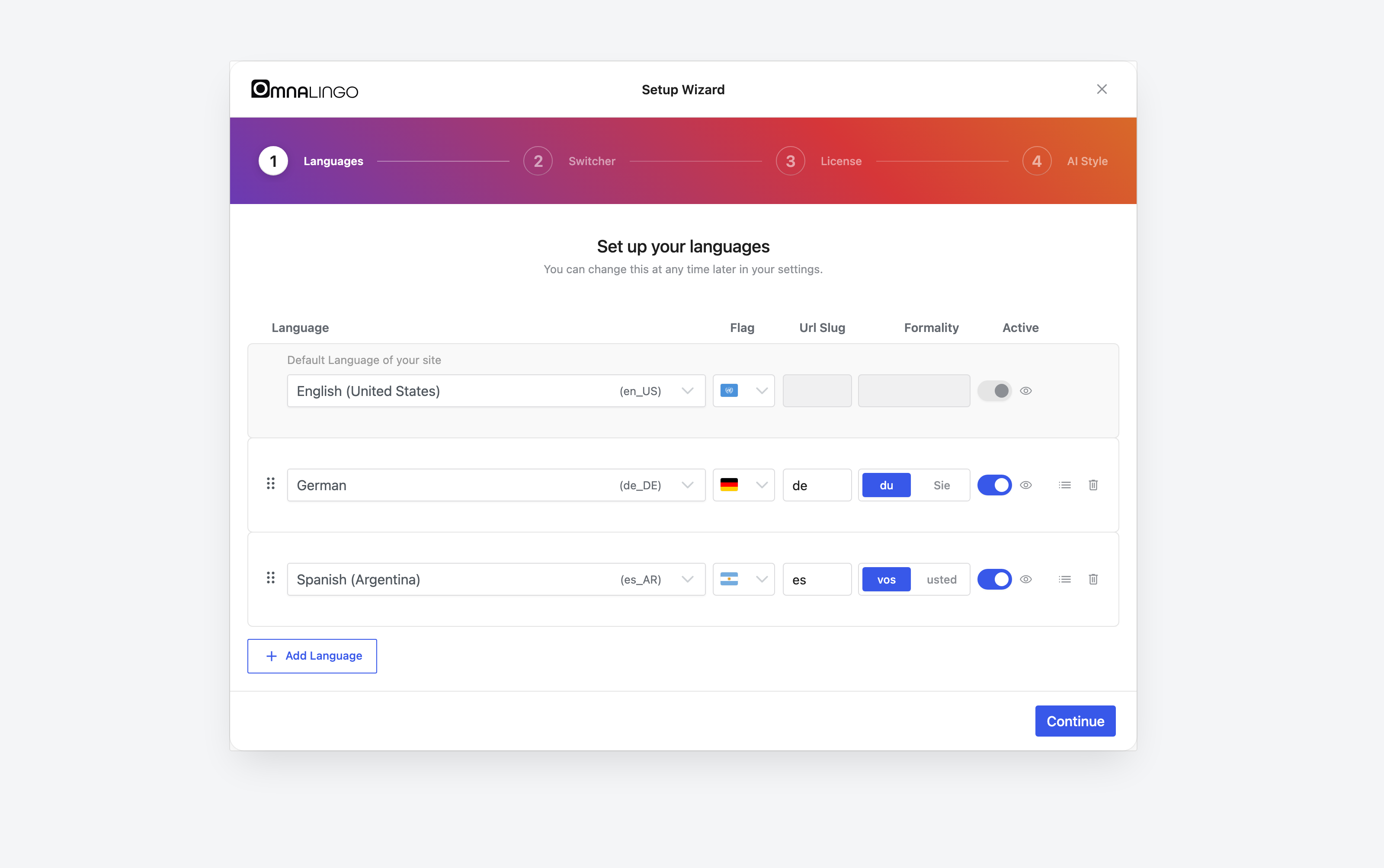
You can adjust language slugs, formality levels (like choosing between informal “du” and formal “Sie” for German), and active toggles at any time later in your settings.
Step 2: Choose Where Your Language Switcher Appears
The next wizard step, Switcher, lets you decide how visitors switch between languages on your site. Because Omnalingo integrates smoothly with Enfold, you do not need custom CSS or template edits to position your switcher.
You have two convenient options in the wizard:
- In a menu: Add the language choices to one of your navigation menus, such as Enfold’s main menu.
- Floating switcher: Display a floating language selector at a position you choose, with style presets such as Light, Dark, Transparent, Flags Only, Icon Only or Pill.
You can change this later under Settings → Language Switcher, which also offers the menu integration and a floating picker. Need the switcher in a widget area or an Avia Layout Builder text block? Use the shortcode .
Step 3: Try It With Free AI Words First
Before committing to anything, you should always verify the translation quality on your own content. The wizard’s License step lets you turn on AI translation with a free key that includes 2,000 AI words, no credit card required. You can also skip this step and add a key later.
Those free words are enough to test a few real pages. Pick your homepage or a complex Avia landing page with multiple columns, icon grids, and accordion toggles. Run a quick test translation and open the page in your browser: you will see your original Enfold design fully intact, with every text block translated into natural, fluent language.
Step 4: Translate Your Entire Site With Auto Translate
Once you are happy with the test translation, you are ready to launch your multilingual site. You do not need to open each page individually or copy shortcodes into external tools.
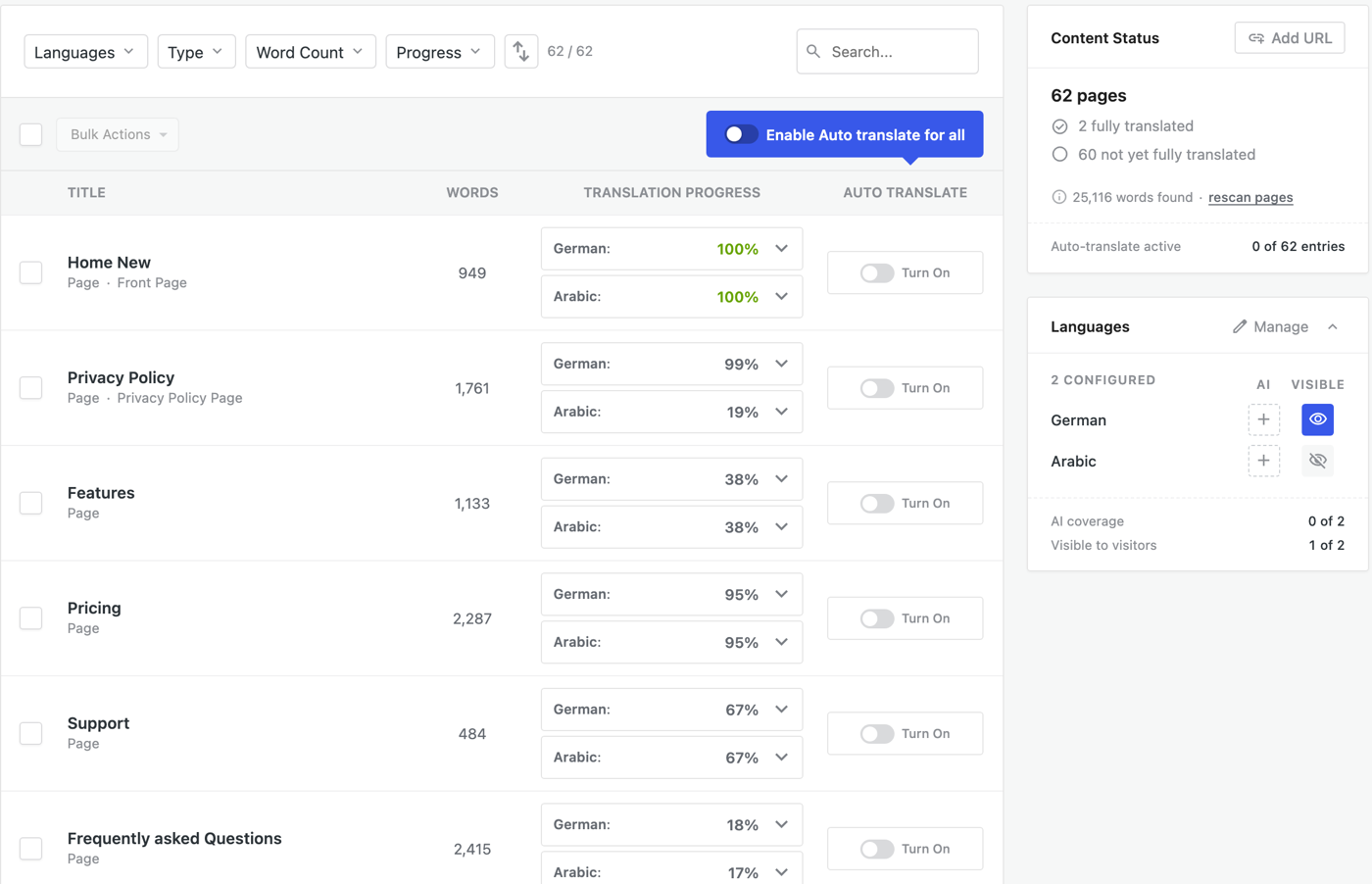
Open Translation → Sitemap and click Enable Auto translate for all (or turn it on per page). Translating a whole site with AI needs the AI Translation Service, or enough of the free trial words for a small site. Omnalingo then translates your pages, portfolio entries, blog posts, and Enfold contact forms in the background. If you prefer to work by hand, the Live Editor lets you translate any page visually, and manual translation never requires the paid service.
Because all translations live in Omnalingo’s own tables in your WordPress database, you keep ownership of your content, and your original pages are not duplicated. Each language gets its own URL, so search engines can index your localized pages. The plugin is free, and the optional AI Translation Service has no word meter, so publishing more does not cost more (read our guide on what multilingual WordPress actually costs for the details).
Why This Works for Every WordPress Theme and Plugin
Looking through the four steps above, you might notice something surprising: almost none of these steps required Enfold-specific workarounds.
That is completely on purpose. With older translation systems, page builders were a nightmare because the plugins tried to parse every individual theme element separately. If an author added a new Avia icon box or changed a column width, the translation plugin struggled to keep the layouts aligned.
Omnalingo was built from the ground up for modern WordPress. It translates rendered text cleanly without touching the underlying builder markup. That means the exact same workflow works whether you build pages in Enfold, use the native WordPress block editor, or pair your theme with WooCommerce and Gravity Forms.
You build great websites once. Let AI handle the language.
Frequently Asked Questions About Translating Enfold Sites
Does translating an Enfold site slow down page load times?
Very little. Omnalingo translates upfront, not on request, and stores translations in your own database, so it adds under 25ms of load time. There is no proxy, no DNS change and no external rendering service in the path of your visitors.
What happens when I update Enfold?
Because your translations are attached to your content rather than hardcoded into theme files, updating Enfold will never overwrite or erase your translated copy. With the AI Translation Service, when you edit an existing page only the changed sentences are re-translated, preserving the rest of your content. Without it, you update the translation by hand in the Live Editor.
Can I manually edit translations to tweak wording?
Yes, you have full control over every single translated phrase. If you ever want to adjust a specific headline, customize a marketing slogan, or replace a localized term, you can edit it directly in the Live Editor or the Full Text List at any time. Remember to click Save Changes.
Ready to make your Enfold site multilingual in a few minutes? Try Omnalingo today and start translating with the free 2,000 AI words. For a broader look at URL structures and SEO best practices, check out our 2026 complete multilingual guide.