You can translate a Divi site without duplicating pages or touching the shortcodes Divi saves. Omnalingo translates the text Divi renders (your builder modules, Theme Builder headers and footers, and theme strings) and stores those translations in its own tables in your WordPress database. You keep designing in Divi exactly as before. Setup takes a few minutes; reviewing the result on your key pages and testing forms takes a little longer, and that review is worth doing.
Divi is one of the most popular WordPress themes and visual page builders around. Freelancers, agencies, and business owners pick it because designing in it feels visual and direct. Then the client asks for a German or Spanish version, and that visual workflow often turns into backend forms, duplicated pages, and layouts that drift apart over time.
At Team Kriesi, we have built WordPress themes for more than 15 years, and we have seen the same pattern with every page builder: the design side gets easier every year, while translation stays stuck in older workflows. Translating a site should feel close to how you built it: you look at the page and fix what you see.
This guide explains why Divi can be awkward to translate, how Omnalingo handles it, the exact setup steps, and what to test before launch.
Why Divi Sites Are Tricky to Translate
When you drag a Section, Row, or Blurb onto a page, Divi saves that structure in your post content as nested shortcodes such as [et_pb_section], [et_pb_row], and [et_pb_text]. Your text sits inside those shortcodes, next to settings for spacing, fonts, and animations.
Traditional translation plugins usually work with that stored content in one of two ways:
- Duplicating posts: Each language gets its own copy of the page. If your English homepage has 20 Divi modules and you add German, Spanish, and French, you now maintain four copies. A new testimonial or a changed button in English has to be repeated in every copy.
- Editing text inside the shortcodes: The plugin pulls sentences out of the stored content into a backend editor. That avoids copies, but you translate text without seeing the layout around it, and the plugin has to write your translations back into a structure Divi depends on.
The more modules and languages you have, the more maintenance those approaches create.
How Omnalingo Translates What Divi Renders
Omnalingo does not duplicate your pages and does not edit your Divi post content. Instead, it translates the text Divi outputs when a page is built. There is no Divi-specific code involved: Omnalingo works this way with any theme or builder.
Here is the flow. Omnalingo scans your pages and collects the visible text: module content, headings, buttons, menu items, theme strings like “Read more”, and the text in your Theme Builder header and footer. Those strings get translated (by AI or by you) and are stored in Omnalingo’s own tables in your WordPress database. When a visitor opens example.com/de/, Divi renders the page as usual, and Omnalingo swaps in the stored German text before the page is sent. Text that scripts add later, such as a message that appears after a click, is swapped in the browser once it has been captured and translated.
| Approach | What It Does With Divi | Ongoing Effort |
|---|---|---|
| Post duplication | Creates a separate copy of each page per language | High: layout changes must be repeated in every copy |
| Text extraction from shortcodes | Pulls text out of stored Divi content into backend forms | Medium: you translate without seeing the layout |
| Omnalingo | Translates the text on the rendered page; your Divi content stays as it is | Low: design once, then translate new or changed text |
Because the translation step never rewrites your Divi post content, your shortcodes and module settings stay exactly as Divi saved them. Layout changes you make in the Visual Builder show up in every language straight away, because every language is rendered from the same page.
Setting Up a Multilingual Divi Site Step by Step
Step 1: Install and Run the Setup Wizard
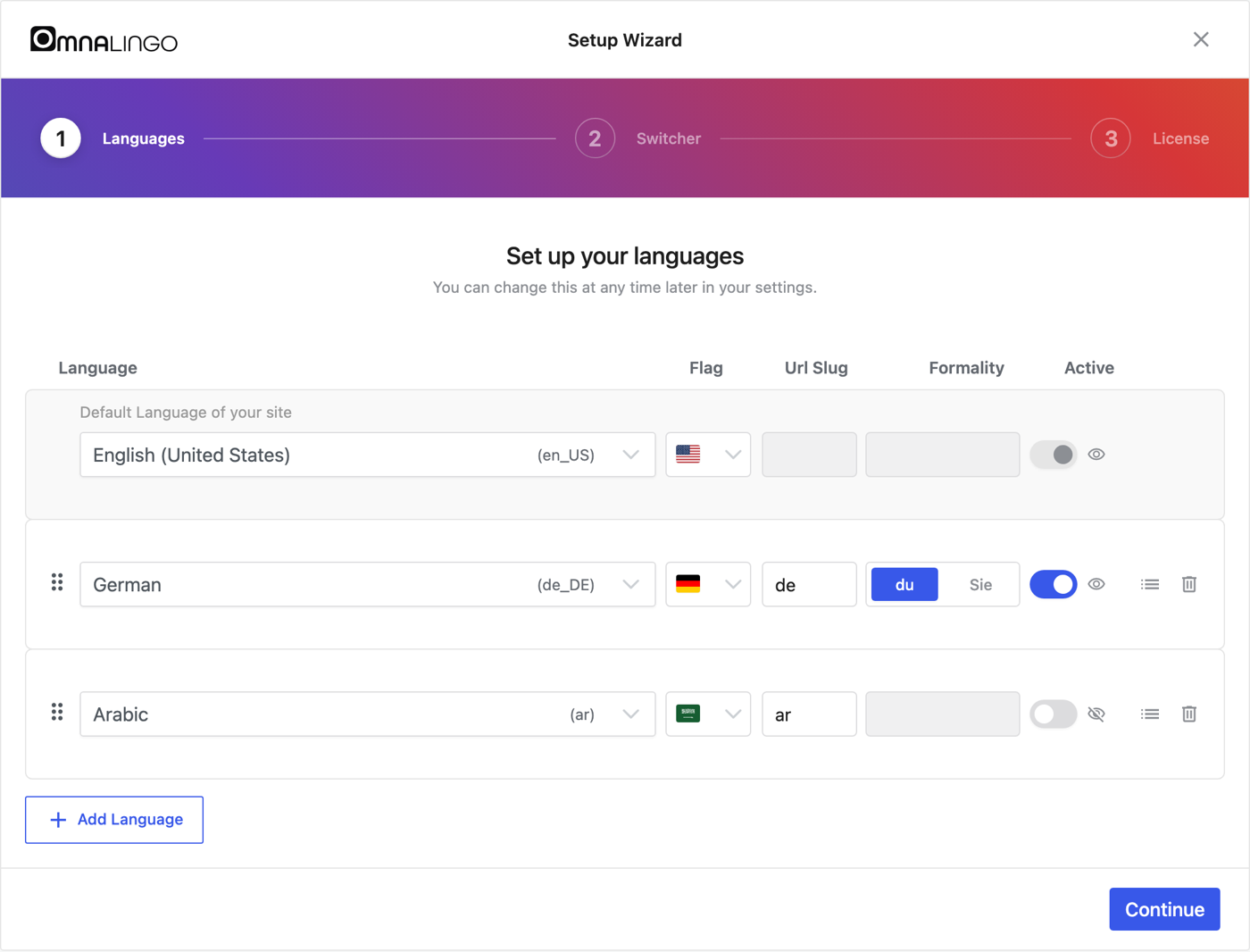
In your WordPress admin, go to Plugins → Add New, search for “Omnalingo” (or upload the plugin zip), and activate it. The setup wizard opens and walks you through a few short steps:
- Languages: Pick the languages you want, plus the flag, the URL slug (like
de), and whether German, French, or Spanish should address visitors formally or informally. - Switcher: Choose a floating language switcher with a position on screen, or place it in a menu, and pick a style preset that suits your Divi design.
- License: Turn on AI translation with a free key that includes 2,000 AI words to try it, or enter an AI Translation Service key. You can skip this and translate manually.
- AI Style: If you added a key, choose the writing voice for AI translations.
There is no separate URL step. With pretty permalinks enabled (which nearly every Divi site already has), each language automatically gets its own folder like /de/ or /es/.
Step 2: Translate Your Pages From the Sitemap
Go to Translation → Sitemap. You see every page with its translation progress per language. You can turn on Auto translate for single pages, or use the Enable Auto translate for all button in the sidebar to translate the whole site. AI translation uses the AI Translation Service (or your 2,000 free trial words); if you prefer to translate by hand, you can do all of it without the paid service.
Step 3: Review and Polish in the Live Editor
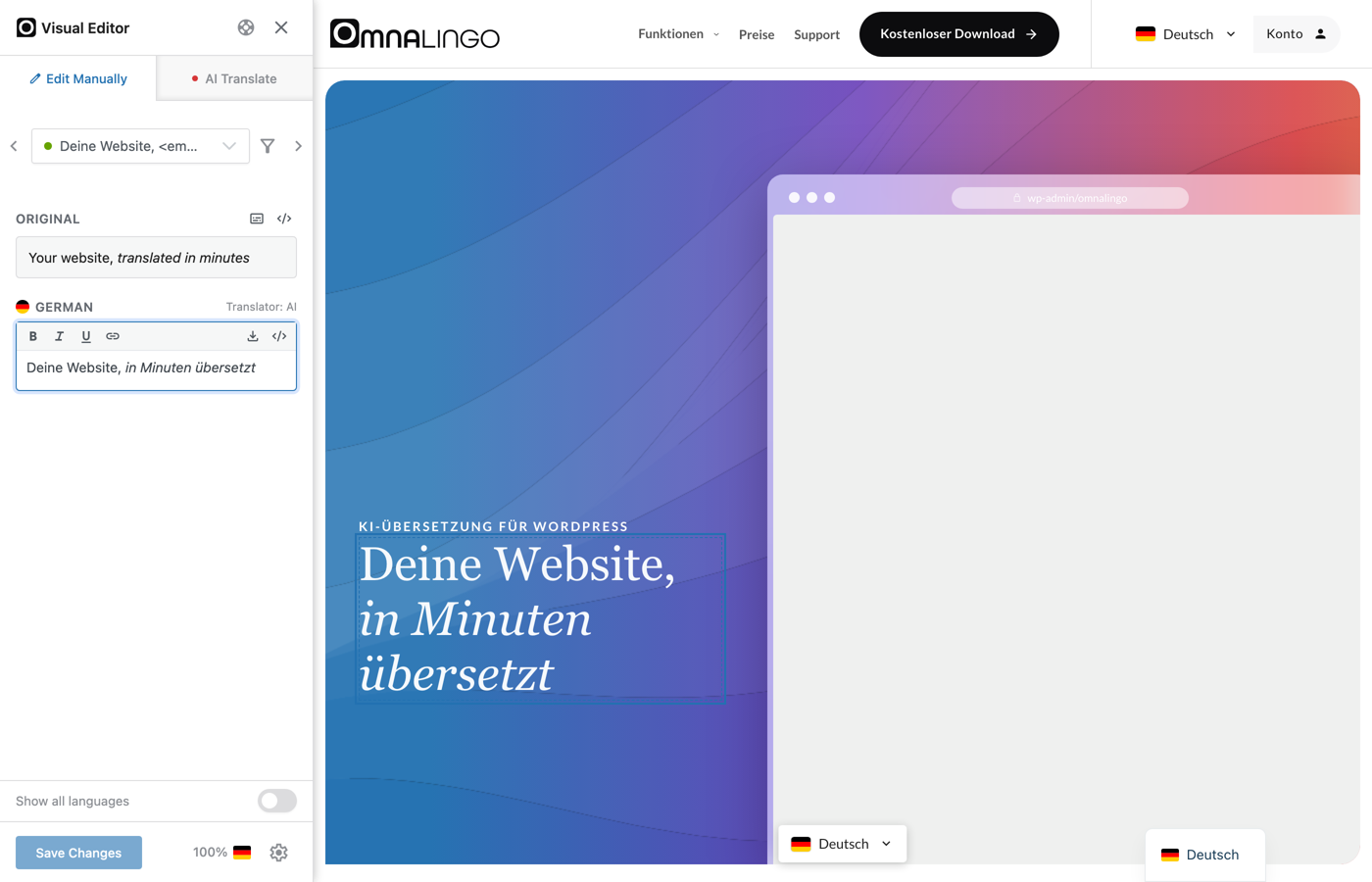
Open a translated page on the front end while logged in and launch the Live Editor. It shows your actual Divi page; click a sentence, adjust the wording, and press Save Changes (there is no autosave, so save before you leave). For a list view of every string, including theme and plugin text, use the Full Text List and filter by type.
Step 4: Translate Your Page URLs
From each page’s language menu in the Sitemap, choose Translate URL to give the German page a German address, for example /de/kontakt/ instead of /de/contact/. You get a live preview and an AI suggestion, and the old address redirects to the new one. Our guide on translating URL slugs explains when it matters.
Theme Builder Headers, Footers and Templates
The Divi Theme Builder lets you build global headers, footers, and templates for posts, archives, and 404 pages. With traditional approaches, multilingual Theme Builder setups often mean duplicate templates with language conditions, which you then have to keep in sync.
With Omnalingo, you keep one set of templates. Your header menu, footer text, and template labels are part of the rendered page, so they are scanned and translated like everything else. When you change your footer copyright line, the new text shows up as a new string to translate; your layout stays the same in every language.
Menus deserve a quick check. If you placed the language switcher in a menu, confirm it shows on desktop and in Divi’s mobile menu. You can attach it under Settings → Language Switcher → Menu integration, use the floating switcher, or add the shortcode to a Divi Code or Text module.
What to Test in Divi Modules
Omnalingo translates the text that appears on the page, but some text only appears after an interaction. Before launch, click through these spots in each language:
- Contact forms: Check field labels, placeholders, the submit button, and especially the success and error messages, which only appear after you submit. Send a test message.
- Sliders and carousels: Look at every slide, not only the first one, and check button labels on each.
- Pricing tables: Check feature lists and buttons, and decide whether prices or currency labels should differ per language.
- Toggles, tabs, and popups: Open each one; hidden content is easy to miss.
If something stays in English, open that state in the Live Editor (for example, submit the form so the success message appears) so Omnalingo captures the text, then translate it. You can also search for the string in the Full Text List. Once a string is captured and translated, it is swapped in every time it appears.
One more thing: text inside images cannot be translated as text. If a banner image has words baked in, upload a localized version and swap the image per language in the Live Editor.
The Omnalingo plugin is free with unlimited languages. AI translation is a flat €96 a year with one AI language, and each extra AI language is a one-time €29 at the current launch price. Compare it with other setups in our translation plugin cost calculator.
What Happens When You Edit a Page
Layout and design changes apply to every language instantly, because every language renders from the same Divi page. Text changes are different: a new headline is new text that needs a translation.
- With the AI Translation Service: Pages with Auto translate turned on pick up new or changed text and translate it for you.
- Without it: New text shows in your original language until you translate it, which you can do any time in the Live Editor or the Full Text List.
Speed and Database: What Actually Changes
| Topic | Post Duplication | Omnalingo |
|---|---|---|
| Your posts | One extra copy per page per language | No copies; translations live in Omnalingo’s own tables |
| Page speed | Depends on the plugin and site | Under 25ms added load time; translations are prepared upfront, not on each request |
| Design updates | Repeat in every language copy | Edit once in Divi |
There is no proxy, no DNS change, and no external rendering service: pages are served from your own server. Each language has its own URL, which keeps page caching simple; still, clear your cache and spot-check each language after launch.
Best Practices for Multilingual Divi Sites
- 1. Leave room for longer text: German and French often run longer than English. Avoid fixed-height buttons and tight columns, and check your pages on mobile.
- 2. Prefer real text over text in images: HTML text can be translated and indexed; text in images needs a separate image per language.
- 3. Add your brand terms to the glossary: Product names and slogans you never want translated belong in the glossary under Settings → AI Settings (part of the AI Translation Service). See our glossary guide.
- 4. Let the plugin handle hreflang: Omnalingo adds hreflang tags (which tell Google which language version to show) for every language plus x-default. Our hreflang guide shows how to check them.
For the bigger picture beyond Divi, read our guide on making a WordPress site multilingual.
Frequently Asked Questions About Divi Translation
Do I Need a Developer to Translate Divi?
No. You install the plugin, run the wizard, and translate from the Sitemap and the Live Editor. You do not edit shortcodes, theme files, or database tables.
Will Translation Slow Down My Divi Site?
Omnalingo adds under 25ms of load time, because translations are prepared upfront and stored in your database rather than fetched on each request. As always, test with your own caching setup after launch.
Is AI Translation Free With Omnalingo?
The plugin, including manual translation in the Live Editor, is free with unlimited languages. You get 2,000 free AI words to try the AI. Translating a whole site with AI, and re-translating edits automatically, needs the AI Translation Service: €96 a year including one AI language, with extra AI languages as a one-time purchase.
What Happens If I Deactivate Omnalingo?
Your Divi pages keep working in the original language. Translated pages stop being served while the plugin is inactive, but the translations stay in your database, so they are back when you reactivate it.