You do not need to duplicate Bricks templates or configure individual query loops to build a multilingual site. Build your layout once using standard Bricks elements, add the language switcher to your header template, and let the translation engine translate your rendered pages in the background without duplicating templates.
Developers and site creators choose Bricks Builder for one primary reason: clean, modern architecture. Unlike older page builders that produce nested div soup and drag down server response times, Bricks delivers lean HTML, fast query loops, and native CSS variables. Yet when it comes to translating a Bricks site, approaches that duplicate templates can eat into that advantage.
Some translation approaches treat page builders like a puzzle: they duplicate header templates, clone archive layouts, and translate raw strings in a separate screen. If you update a button style or adjust a grid gap on your primary template, your translated templates immediately drift out of alignment.
In this guide, we will show you how to translate a complete Bricks Builder site in a few minutes using modern AI translation: one master template, no duplicate layouts, and clean server-rendered code.
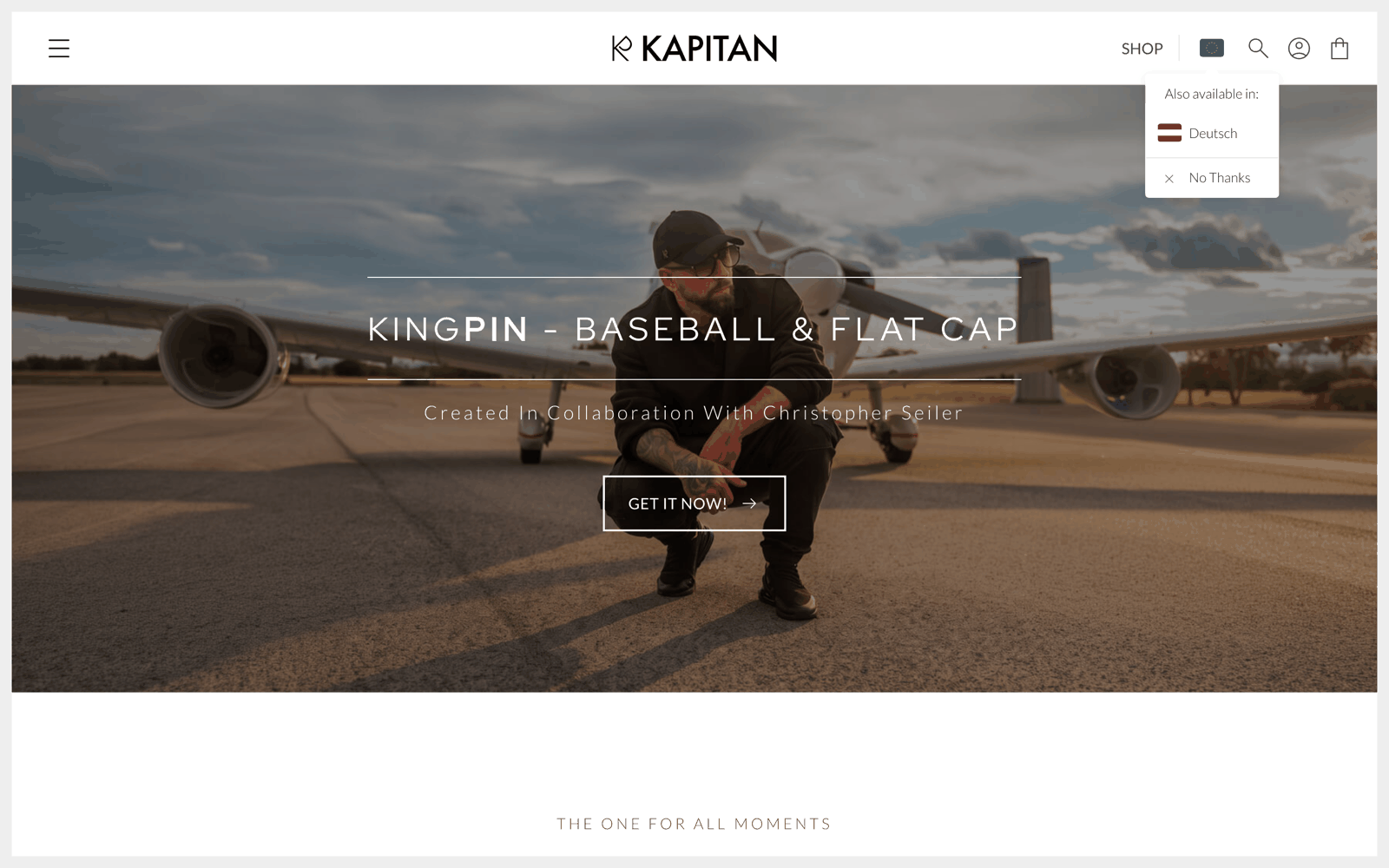
If you want to see what this looks like on an active production shop, take a look at Kapitan. It is a real-world side project built with a friend of ours, running a comprehensive WooCommerce stack, sophisticated custom Bricks templates, and a German translation powered by Omnalingo. Even with complex product archives, variation selectors, and custom cart flows, the store runs from a single set of Bricks templates.
Why Template Duplication Hurts Bricks Sites
If you have ever translated a Bricks site with a plugin that duplicates content, you know the frustration. The core issue comes down to template duplication.
In setups that duplicate content, translating a custom header or dynamic archive means creating an identical duplicate template for every language. A site with three languages suddenly requires three headers, three footers, three single-post templates, and three blog archives. When you want to change a navigation link or tweak a responsive padding setting, you have to repeat that edit across every single template.
Dynamic content adds another layer: Bricks dynamic tags like How to Translate a Bricks Builder Site in a Few Minutes and , and ACF fields, are resolved by Bricks at render time. Tools that work on the stored data rather than the rendered result have to account for all of that.
Omnalingo works on the rendered output instead. Bricks executes its clean templates and fast query loops exactly as intended, and the translation engine translates the resulting text automatically. (To see how this single-layout architecture compares to post duplication, read our breakdown on Omnalingo vs WPML).
Step 1: Run the Setup Wizard
To get started, install and activate Omnalingo on your WordPress site. The setup wizard launches immediately to handle your foundational language settings.
The wizard’s first step, Languages, lets you choose your target languages (like German, Spanish, or French), their flags and URL slugs. Language folders like /de/ or /es/ are created automatically when your site uses pretty permalinks, with no manual rewrite rules. The next steps cover the switcher and an optional free key for AI translation (2,000 AI words).
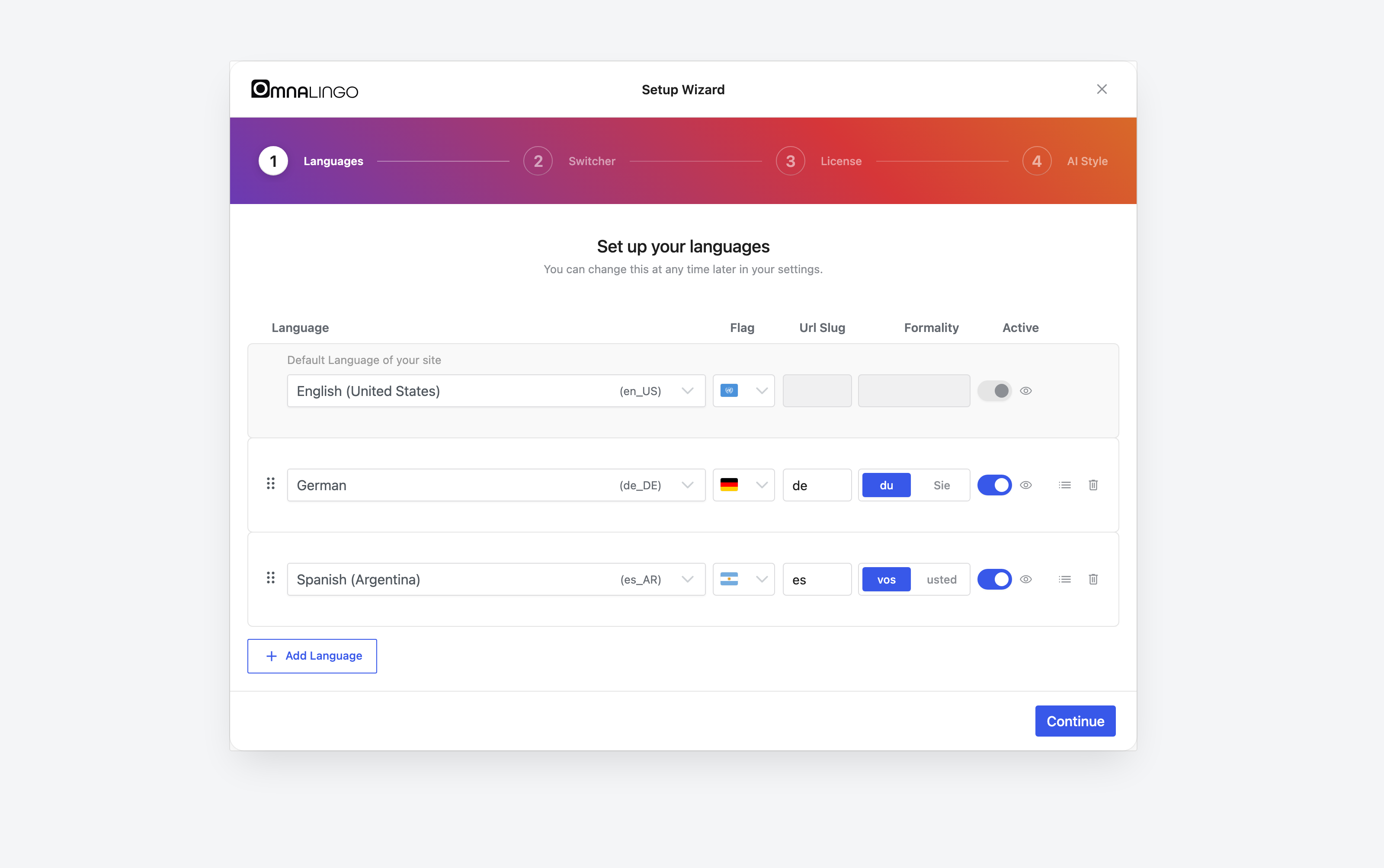
You can choose formal or informal address (du or Sie) per language, set custom language slugs, and switch languages on or off right from this screen.
Step 2: Add the Switcher Using Shortcodes
In traditional WordPress themes, plugins assume you are using the native WordPress menu system. In Bricks Builder, most developers build custom headers using layout blocks, containers, and icon elements rather than default theme menus.
Because of this, a shortcode is often the most flexible way to add a language switcher in Bricks, but you have three options:
- Using the Shortcode Element: Open your Bricks Header template, add a standard Shortcode element to your navigation container, and enter
. It renders a lightweight switcher inside your own header layout. - Using the Floating Switcher: If you prefer not to alter your header layout, you can use the floating switcher (Settings → Language Switcher, with a position and style preset of your choice). It docks in a corner of the browser, and you can adjust its look to fit your design.
- Native Menu Dropdown: If your Bricks header does use the native WordPress Nav Menu element, turn on Menu integration under Settings → Language Switcher (“Attach it to your navigation menus”), no shortcode needed.
You can restyle the switcher with your own CSS, including Bricks global classes or CSS variables.
Step 3: Translate Your Entire Bricks Site Automatically
Once your languages and switcher are configured, you are ready to translate your website. You do not need to open each page individually, copy strings into external tools, or duplicate your templates.
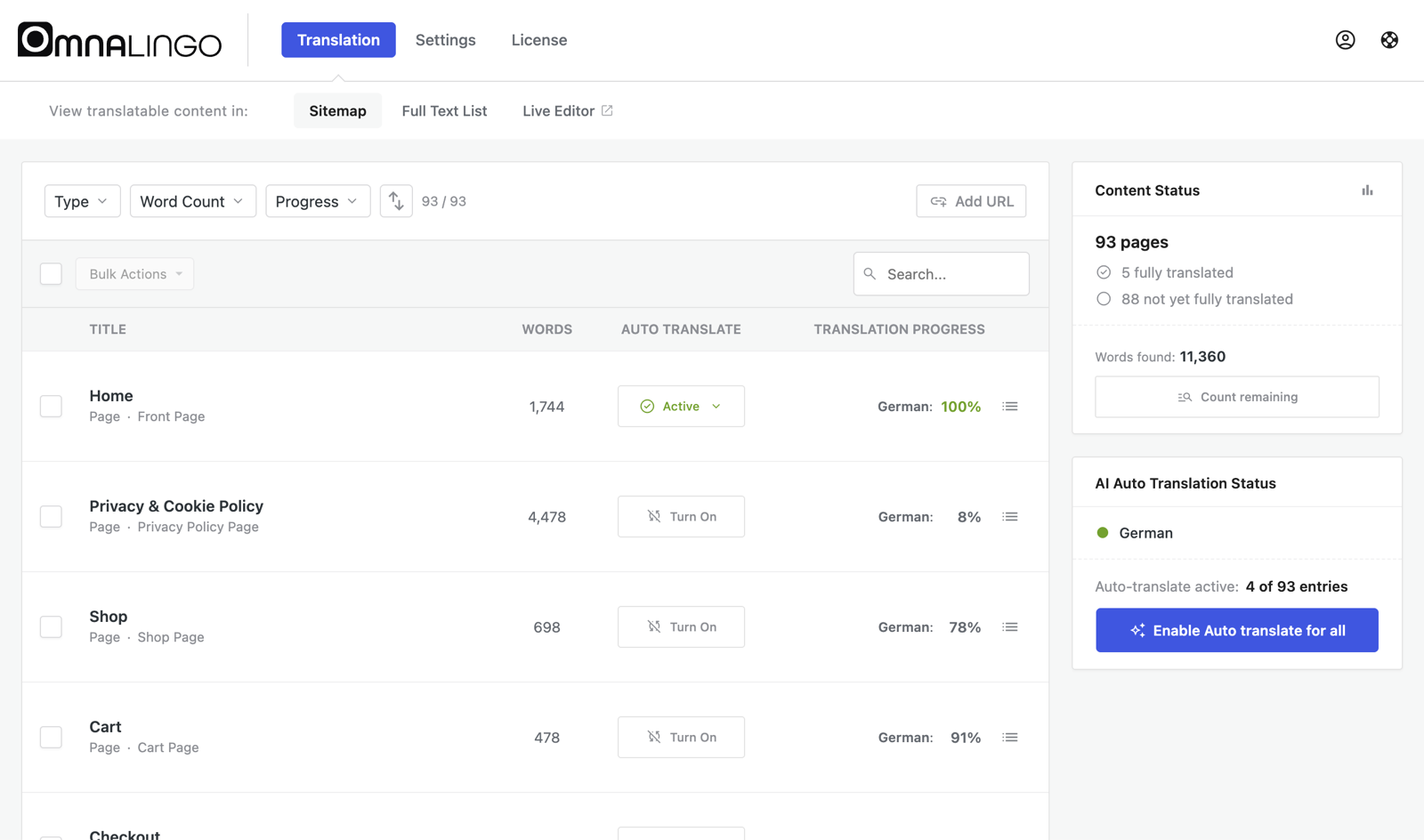
Open Translation → Sitemap and click Enable Auto translate for all (or turn it on row by row). AI translation of a whole site needs the AI Translation Service, or enough of the free 2,000 trial words for a small test; manual translation in the Live Editor is always free. Omnalingo then translates your pages, blog posts, query loop content, and global header and footer text in the background.
Because translations live in your own WordPress database and are prepared upfront, Omnalingo adds under 25ms of load time, and each language has its own URL for search engines. The plugin is free, and the AI Translation Service has no word meter, so publishing more does not cost more (read our guide on what multilingual WordPress actually costs for the numbers).
3 Bricks-Specific Translation Tips to Keep in Mind
When translating dynamic websites in Bricks Builder, keeping these practical considerations in mind will save you time:
- 1. Allow for German and French Text Expansion: Translated European languages often need 20% to 30% more space than English. When designing button elements and multi-column grid layouts in Bricks, avoid rigid fixed widths and use flexible CSS gap values.
- 2. Style Switchers with Global Classes: If you use utility frameworks like Automatic.css or Core Framework inside Bricks, you can apply your utility classes to the switcher wrapper to keep it consistent with the rest of your design.
- 3. Verify Dynamic Query Loops: If your Bricks query loop outputs custom post types or ACF fields, open a localized page to check that custom taxonomy labels and post excerpts are translated. Anything missing can be fixed in the Live Editor or the Full Text List.
Frequently Asked Questions About Translating Bricks Sites
Do I need to translate Bricks templates and popups separately?
Usually, no. When Bricks templates (such as headers, footers, section templates, and standard popups) render on a page, Omnalingo translates them automatically as part of that page’s rendered output. If you need standalone templates translated outside of a page, check the content settings (Settings → Advanced, post types) and add the bricks_template post type if it is not listed. Text that only appears after a click, such as a popup, is captured once when you open that state in the Live Editor.
Does translating an international page add DOM bloat?
No, Omnalingo does not add wrapper layouts. It swaps translated text into the HTML that Bricks generated, so your page keeps the same structure. Translated gettext strings are wrapped in a small custom tag, but there are no extra layout containers or external rendering libraries.
What happens when I update a Bricks master template?
Your design updates apply across all languages automatically. When you adjust a layout, change a column width, or swap a hero background image in your master Bricks template, that change shows on your German, French, and Spanish pages too, because they share the same layout. Text baked into images needs a per-language image swap (Omnalingo supports image translation), and new or changed text needs translating again (automatic with the AI Translation Service, manual otherwise).
Ready to translate your Bricks Builder site without breaking your clean architecture? Try Omnalingo today and start with the free 2,000 AI words. For a comprehensive look at international SEO best practices, read our 2026 multilingual guide.