Selling internationally is one of the fastest ways to grow an e-commerce brand. In a 2020 CSA Research survey, 76% of consumers said they prefer buying products with information in their own language, and 40% said they never buy from websites in other languages. Yet for WordPress store owners, translating WooCommerce has often been one of the most frustrating, error-prone tasks in the ecosystem.
The root problem lies in how many traditional plugins approach e-commerce. They treat every product like a standard blog post, duplicating product records per language. A store with 300 variable products can turn into 900 separate database posts that need their stock counts and SKUs kept in sync.
In this guide, we will walk through how to translate a complete WooCommerce store cleanly: one master catalog, unified stock management, a translated checkout, and localized customer order emails.
Why Duplicating Products Breaks Stores
To understand why store owners dread traditional multilingual setups, look at what happens in your database. E-commerce is not static content; it is a transactional engine with real-time stock levels and cart sessions.
When a plugin duplicates your catalog to create German and French products, it creates operational risks:
| Operational Area | Duplicating Approaches | Omnalingo Single-Catalog |
|---|---|---|
| Inventory Tracking | Separate product records that need stock kept in sync. | One inventory record. Stock decrements on every sale, whatever the language. |
| Product Variations | Variations exist once per language (10 sizes × 3 languages = 30 records). | One master set of variations. Attribute labels are translated on the page. |
| Database Size | More rows in wp_posts for every language you add. |
No duplicated products. Translations live in Omnalingo’s own tables. |
Beyond duplication, a second trap for growing stores is recurring word-based pricing. An e-commerce store with 200 items, product reviews, variation descriptions, and checkout strings can easily pass 150,000 words, and with word-metered services every language and every new product adds to the bill. Omnalingo’s AI Translation Service is a flat €96 a year (excl. VAT) with one AI language included, extra AI languages are a one-time €39 (currently €29), and there is no word meter: publishing more products does not cost more. (See our four-year cost comparison in what a multilingual WordPress site costs.)
Step 1: Set Up Language Folders for Your Store
The first step is a clean, search-engine-friendly URL structure for your international storefront. For most stores, subdirectories (such as example.com/de/shop/) are the simplest option because everything stays on one domain. (We compare the options in subdirectory, subdomain or country domain.)
When you install Omnalingo, the setup wizard asks for your languages, flags, URL slugs, and formality (du/Sie), then lets you choose a language switcher. Language folders like /de/ are created automatically as long as you use pretty permalinks.
Your shop archives, category pages, and single product URLs get clean language prefixes:
- Primary Store:
example.com/shop/leather-jacket/ - German Storefront:
example.com/de/shop/leather-jacket/ - French Storefront:
example.com/fr/shop/leather-jacket/
Because these URLs run through standard WordPress routing, your existing analytics and feeds keep working; just check your Google Merchant Center feed settings for the new language URLs.
Step 2: Translate Products Without Duplicating Stock
Once your languages are active, you can translate your catalog from Translation → Sitemap. With the AI Translation Service (or the free trial words), “Enable Auto translate for all” translates your published products, descriptions, and tab content in the background. Prefer to do it by hand? The Live Editor and the Full Text List are free and need no AI.
The critical difference is how these translations are stored. Omnalingo saves translations as string translations in its own tables; products are not duplicated.
This single-record approach gives store managers three benefits:
- Unified Inventory Management: When a customer in Munich buys your last jacket on the German storefront, WooCommerce reduces the stock of your one and only product record. There is no second record to fall out of sync.
- Single SKU Tracking: Your ERP system, warehouse scanner, and inventory plugins only ever deal with one SKU per item.
- Instant Price Updates: When you adjust a price or schedule a sale, the change applies to all language storefronts, because there is only one product.
Step 3: Localizing Variations and Attributes
Variable products are the most complex part of WooCommerce. When customers select sizes (S, M, L), colors, or materials, WooCommerce relies on attributes and JavaScript to update prices and stock availability.
Approaches that create duplicate attribute terms (separate terms for “Small”, “Klein”, and “Petit”) can cause trouble with custom swatches. Omnalingo leaves your native WooCommerce attributes intact. It translates the human-facing labels on the rendered page while the underlying slugs and variation IDs stay untouched. Test your own swatches and dropdowns on each language before launch, as custom themes vary.
Step 4: Check Cart and Checkout Translation
The checkout page is where sales are won or lost. Untranslated error messages or English shipping terms on a localized checkout can push shoppers to abandon their cart.
The WooCommerce checkout refreshes parts of the page in the background. When a buyer changes their shipping country or enters a coupon code, WooCommerce recalculates taxes and reloads the order summary without reloading the page.
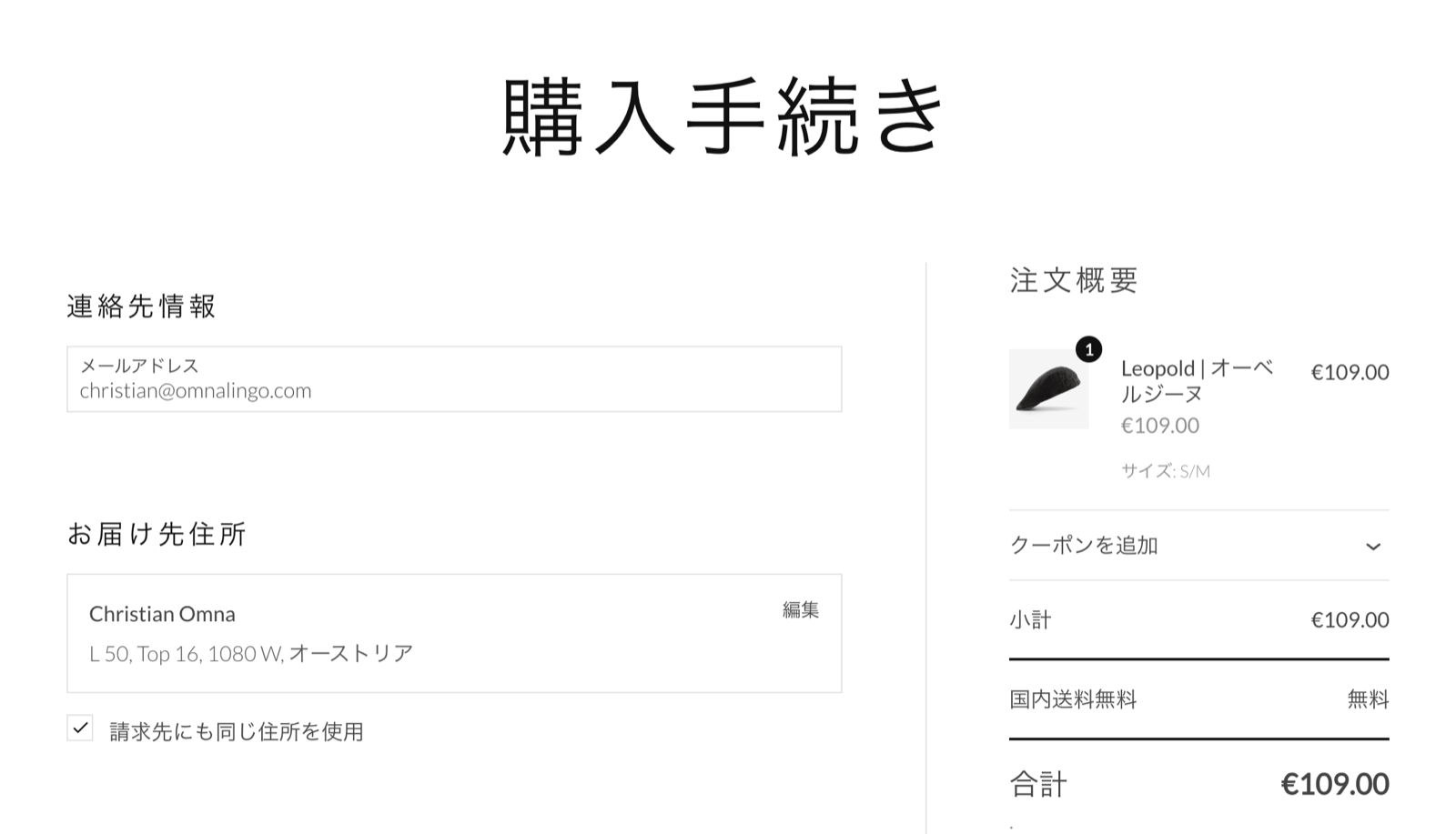
Omnalingo translates these background checkout updates as well, so the refreshed order summary, address labels, placeholder hints, shipping method titles, and coupon notices appear in the shopper’s language. Payment widgets from gateways such as Stripe, PayPal, or Klarna typically localize themselves; that is the gateway’s own behavior and depends on its settings, not on Omnalingo.
Handling Dynamic JavaScript Output with Test Orders
While most WooCommerce checkout strings go through standard WordPress translation functions (which Omnalingo translates), many stores also run third-party extensions. Plugins for delivery date pickers, gift wrap checkboxes, or custom payment gateways can generate status messages with client-side JavaScript.
Because these messages only appear after specific user actions (such as typing an invalid postal code or selecting a payment tab), a page scan cannot always see them in advance. Omnalingo swaps text that is already in its translation map, so each of these states needs to be captured once.
To catch them, we recommend running a test order with the Omnalingo Live Editor:
- 1. Enable test mode: Turn on test mode in your payment gateway settings (such as Stripe test mode) or use Cash on Delivery.
- 2. Open the checkout in the Live Editor: While logged in, add an item to your cart and open the checkout with the Omnalingo editor active.
- 3. Trigger validation states: Leave required fields blank or enter an invalid coupon code so the dynamic error notices appear and can be captured.
- 4. Complete the test order: Place the test order to reach the “Order Received” page, and review the confirmation screen there too. Save your changes in the editor.
After one complete test purchase, the dynamic strings you triggered are captured and can be translated before real shoppers arrive.
Step 5: Localized Customer Order Emails
One of the most embarrassing oversights in international e-commerce is the untranslated confirmation email. A customer completes their purchase on your Spanish storefront, only to receive the order receipt in English.
This happens because WooCommerce emails are often triggered in the background (via cron jobs, payment webhooks, or admin status changes) where the front-end language context is missing.
Omnalingo handles this by using the order’s language: order emails are sent in the language the customer ordered in. Emails such as Order On-Hold, Processing Order, Completed Order, and Customer Invoice are translated into that language. The same applies to Easy Digital Downloads. Your international buyers get native-language notifications throughout the post-purchase journey. Send yourself a test order in each language to confirm that your custom email text is translated too.
Real-World Example: How Kapitan Sells Across Borders
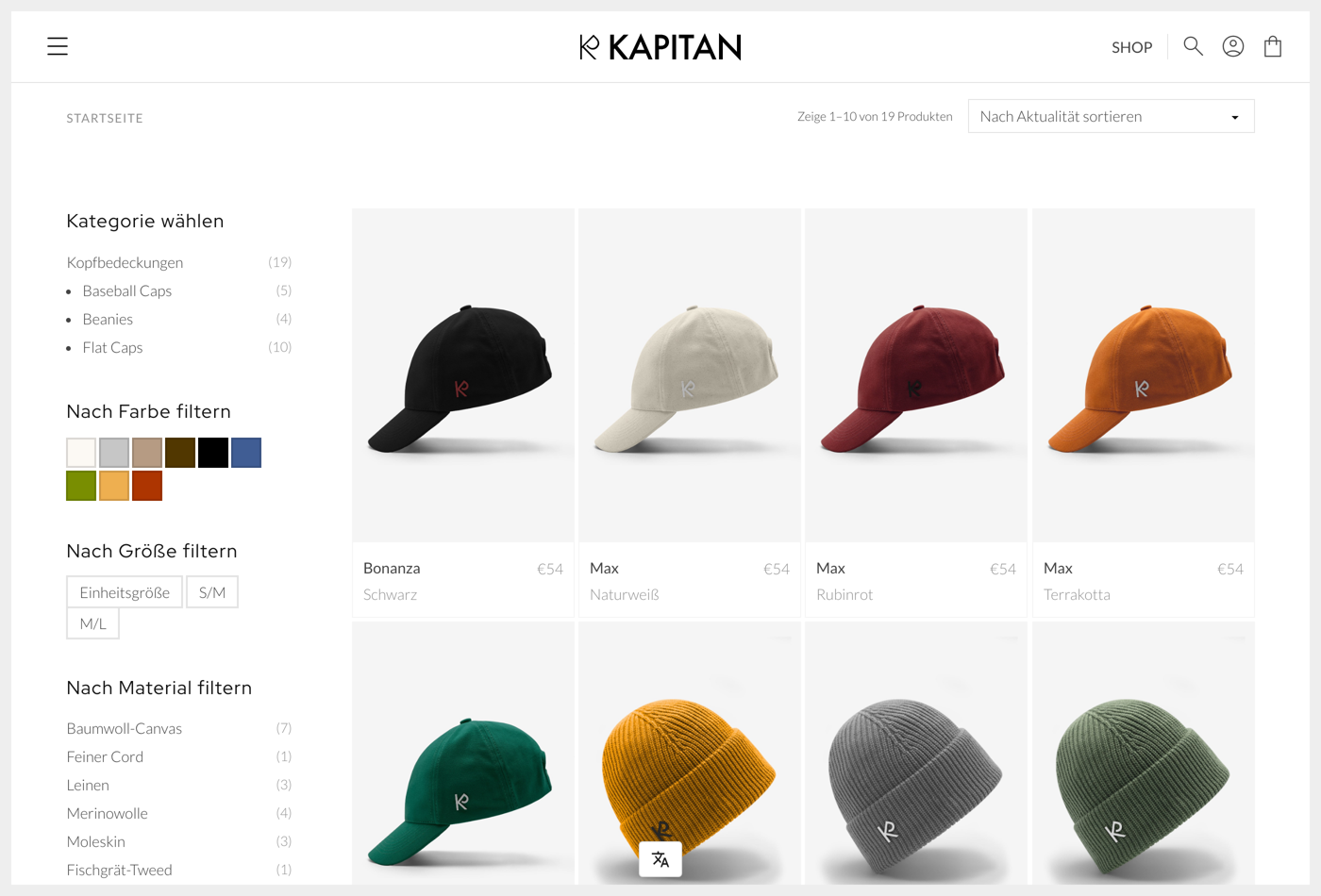
To see this approach on a live store, look at Kapitan. Built with a friend of ours, Kapitan is an active fashion brand using custom Bricks Builder archive templates, product variation swatches, and custom cart drawers, with a German version powered by Omnalingo.
Despite custom layouts and variable products, the store runs from a single set of product records. Inventory updates when orders arrive, and there is no word meter on the translation side. (For more on building clean layouts, read our guide on how to translate a Bricks Builder site).
4 Practical E-Commerce Localization Tips
When preparing your WooCommerce store for international shoppers, keep these practical considerations in mind:
- 1. Allow for German and French text expansion: Buttons and badges frequently grow by 20% to 35% when translated into German or French. Use flexible CSS widths rather than rigid fixed pixel values.
- 2. Localize return and shipping policies: International buyers are sensitive to cross-border delivery times and return policies. Make sure policy links, size guides, and customs fee disclosures are translated.
- 3. Keep clean language folders: Keeping language subdirectories (like
/de/product/) and one set of product records preserves your product structured data and feeds. Translated slugs are optional; see whether to translate URL slugs. - 4. Use a glossary for brand terms: In Settings → AI Settings → Glossary, add “Never translate” or “Always translate as” rules for trademark names, fabric terms, or collection titles so the AI keeps your brand wording. The Glossary is part of the AI Translation Service.
Frequently Asked Questions About Translating WooCommerce
Does translating products desync inventory or stock levels?
No, inventory stays unified. Because Omnalingo stores translations as strings and does not clone products, all language storefronts reference the same product and the same stock count. When an item sells in any language, stock decreases for all.
How are customer receipt and shipping emails localized?
Order emails are sent in the order’s language. When WooCommerce sends an order email (confirmation, completed order, invoice), Omnalingo translates it into the language the customer ordered in.
Do payment gateways like Stripe support translated checkouts?
Usually yes, but that is the gateway’s behavior. Payment widgets from providers such as Stripe, PayPal, or Klarna generally localize themselves based on their own settings and the page or browser language. Check each gateway’s documentation, and test the payment step in every language.
Can I set different product prices per language?
Yes, by pairing Omnalingo with a WooCommerce multi-currency extension. Omnalingo translates text, attributes, and dynamic strings. If you need regional pricing or currency switching (such as EUR, USD, and GBP), use a standard multi-currency extension alongside it.
Ready to take your online store international? Explore Omnalingo today or check our complete 2026 multilingual guide to build a global store.